 KEMET
Add Product — Single
Create one item with a price, unit and branch assignments. Add its opening balance if you already hold the stock.
Steps
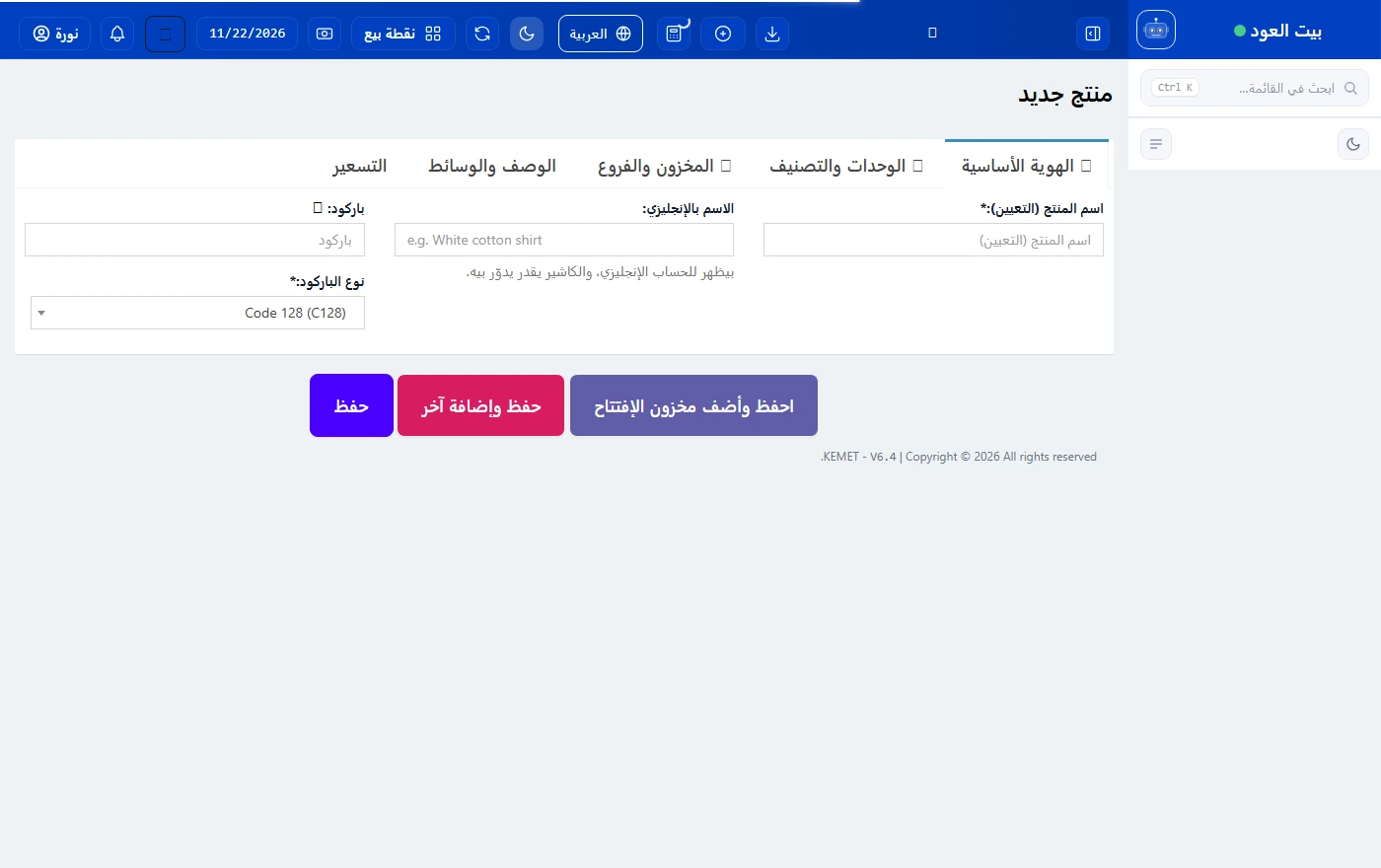
- Open Products → Add Product.
- On Identity, enter the name.
- Enter a verified barcode if available.
- Check Barcode Type.
- Select the Unit in Units & Classification.
- Select Category as appropriate.
- Select the branches in Stock & Locations.
- Enable Manage Stock for a stock item.
- Set the alert if needed.
- Use Description & Media for an image or description.
- Open Pricing.
- Check Selling Price Tax Type.
- Set Product Type to Single.
- Enter the purchase and selling prices when shown.
- Select Save, or Save & Add Opening Stock to continue to that form.
- In the opening stock form, locate the correct branch.
- Enter the counted quantity.
- Review the unit cost before tax and date.
- Save the opening stock form.
Screen path in KEMET
/products/createField reference
- Product Name
- Required. Use a distinct name and include a fixed size if helpful. Rose Incense 30 g
- SKU / Barcode Type
- SKU is optional. Enter the packaging barcode or let KEMET generate an internal SKU. Check the required barcode type.
- Unit
- Required. The price and quantity use this unit. Piece for each box sold separately
- Category / Brand
- Optional classifications that improve search and reporting.
- Business Locations
- Choose the branches assigned to the product. Assignment adds no stock.
- Manage Stock? / Alert Quantity
- Enable tracking for stock items. The optional alert is a review threshold.
- Selling Price Tax Type / Applicable Tax
- Choose inclusive or exclusive pricing, and the applicable tax when needed.
- Default Purchase Price / Default Selling Price
- Enter the known cost and selling price in Pricing when those fields appear.
- Product Description / Product Image
- Optional identifying text or packaging image.
Worked example
Rose Incense 30 g sells for KWD 12.000 and costs KWD 5.000 per box. Enter ten opening boxes in Salmiya if already held.
Illustrative practice. Salmiya held ten boxes before go-live and Avenues held none.
- Card · Rose Incense 30 g · Single · piece
- Unit amounts · KWD 5.000 cost · KWD 12.000 selling price
- Card saved · The item appears with zero stock
- Opening stock saved · 10 × KWD 5.000 = KWD 50.000 before tax in Salmiya
Stock Report shows ten in Salmiya with no increase in Avenues.
Saving the card records the name, price and branches. Saving opening stock records opening quantity and cost. A supplier purchase has its own invoice.
From ChatGPT or Claude
Check whether Rose Incense 30 g exists. If new, prepare a single product, unit piece, KWD 12.000 sale and KWD 5.000 cost. Assign it to Salmiya and Avenues. Add ten opening pieces in Salmiya only. Let me review before saving.
- The assistant verifies the product, unit and branches.
- State the exact branch and whole-piece quantity for this example.
- Ask to see unit, prices, branches and opening quantity before approving.
- Confirm to save or cancel the prepared request.
- Find the new product by barcode in KEMET.
Related connector tools
- Add a combo product
products_create_combo
Verify the result
- Find the item by barcode.
- Inspect the unit and price in Actions → View.
- Check the correct branch quantity after entering opening stock.
- If saving appeared to time out, search for the code before trying again.
Troubleshooting
The barcode is taken.
Match the package with the existing item. Reuse its card if it is the same product.
The unit is unavailable.
Use the plus button if allowed, or ask an administrator to add it.
Opening stock is unavailable.
Check permission, stock management and branch assignment.
The price changed during entry.
Check the tax type, margin and displayed selling price.
The saved item has zero stock.
Use Add or edit opening stock for an old balance, or a purchase invoice for a new delivery.
Training in the KEMET Academy after signing in /academy/native/products