 KEMET
Import Products
Add new products with the current native product import template.
Steps
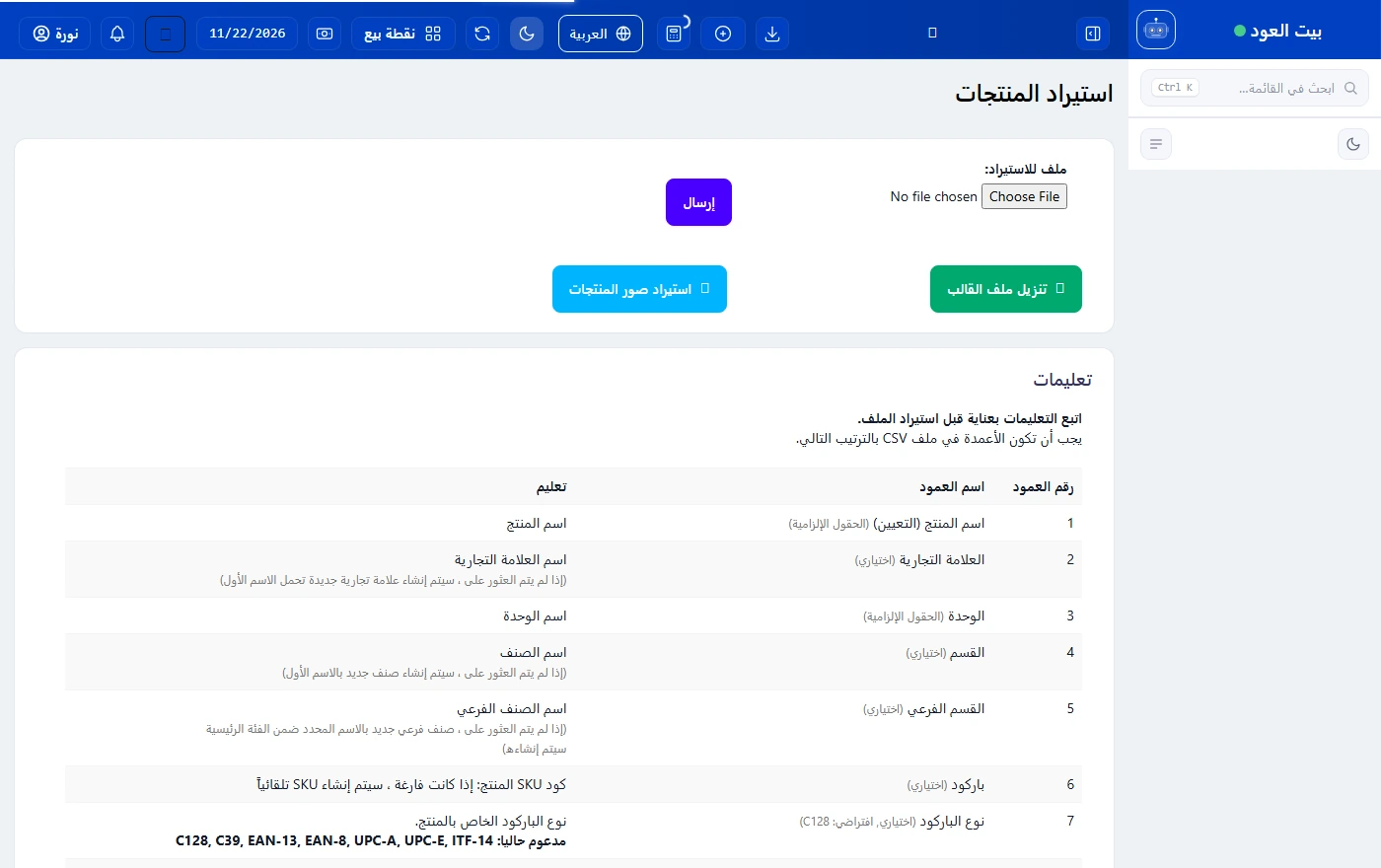
- Download the template and read the column instructions.
- Fill the required product name, unit, product type, stock tracking, and tax price type.
- Review codes, decimal values, and leading zeros before uploading.
- For variable products, match options, codes, and prices in the same order.
- Select the file in File to import and submit it.
- Check the result and verify a single and a variable product from the file.
Screen path in KEMET
/import-productsField reference
- Product name and unit
- The name staff search for and the catalog unit selected for its quantities.
- Product type and variations
- Choose a single product or define each variable option in the template’s required order.
- Stock tracking and tax price type
- Sets quantity tracking and how imported prices are interpreted.
Worked example
Start with two rows in the test file. Use one single item and one product with two different size codes.
Verify both products in the catalog and expand the variable product to compare every code and price.
From ChatGPT or Claude
Prepare the Excel upload link for new items in Salmiya. After I upload it, preview variants, codes, and prices before saving.
- Ask for a new-product upload link and specify the destination branch.
- Download the connector template from that page. Use formula-free rows for up to 20 products and keep codes as text to preserve leading zeros.
- Upload in KEMET, then return to chat and ask for preview. Give the upload reference if requested.
- Review options, codes, prices, and similar matches. Correct the file if any rows need changes.
- Approve the preview and verify the new items in the product list.
Verify the result
- Check the result for any refused rows and query the original codes before reimport.
Troubleshooting
The results include the wrong product or option.
Use the exact variant code and review filters and branch access before committing.
The screen or action is missing.
Ask the company administrator to check the add-on, menu visibility, role permissions, and branch scope.
Screen access depends on company settings, the role, and its allowed branches.
Training in the KEMET Academy after signing in /academy/native/products