 KEMET
Import Product Images
Match image files to products by the SKU in the filename.
Steps
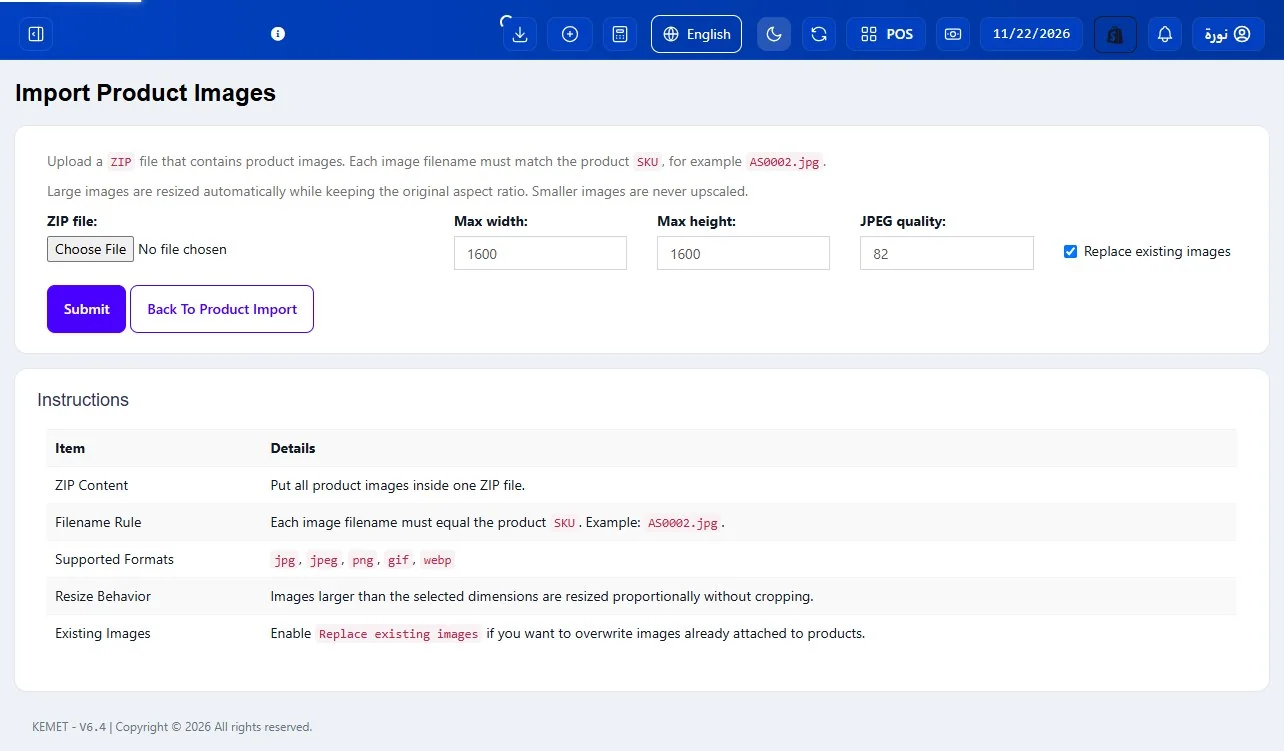
- Name each image file with its product SKU and keep the extension.
- Put the images in a ZIP and select it on Import Product Images.
- Review the dimensions and replacement setting, then upload.
- Read the result and open the product to verify its image.
Screen path in KEMET
/import-product-imagesField reference
- ZIP file
- Contains the image files. Use the product SKU as each image’s base name.
- Max width / height
- Sets the image bounds used by this import form.
- Replace existing images
- Enable only if you intend to replace images already assigned to the matching products.
Worked example
Put AS0002.jpg in a test ZIP for product AS0002. Review the replacement setting before you upload.
Open product AS0002 and confirm the new photo is attached to the exact product.
From ChatGPT or Claude
Help me with Import Product Images. Ask which branch, reference, or dates you need, and show the relevant data before any changes.
Related connector tools
- Prepare a product image prompt
products_update_product_image
Verify the result
- Check the imported/skipped summary and the product’s photo.
Troubleshooting
The results include the wrong product or option.
Use the exact variant code and review filters and branch access before committing.
The screen or action is missing.
Ask the company administrator to check the add-on, menu visibility, role permissions, and branch scope.
Screen access depends on company settings, the role, and its allowed branches.