 KEMET
Print Labels
Preview labels for selected products and variations in the required quantities.
Steps
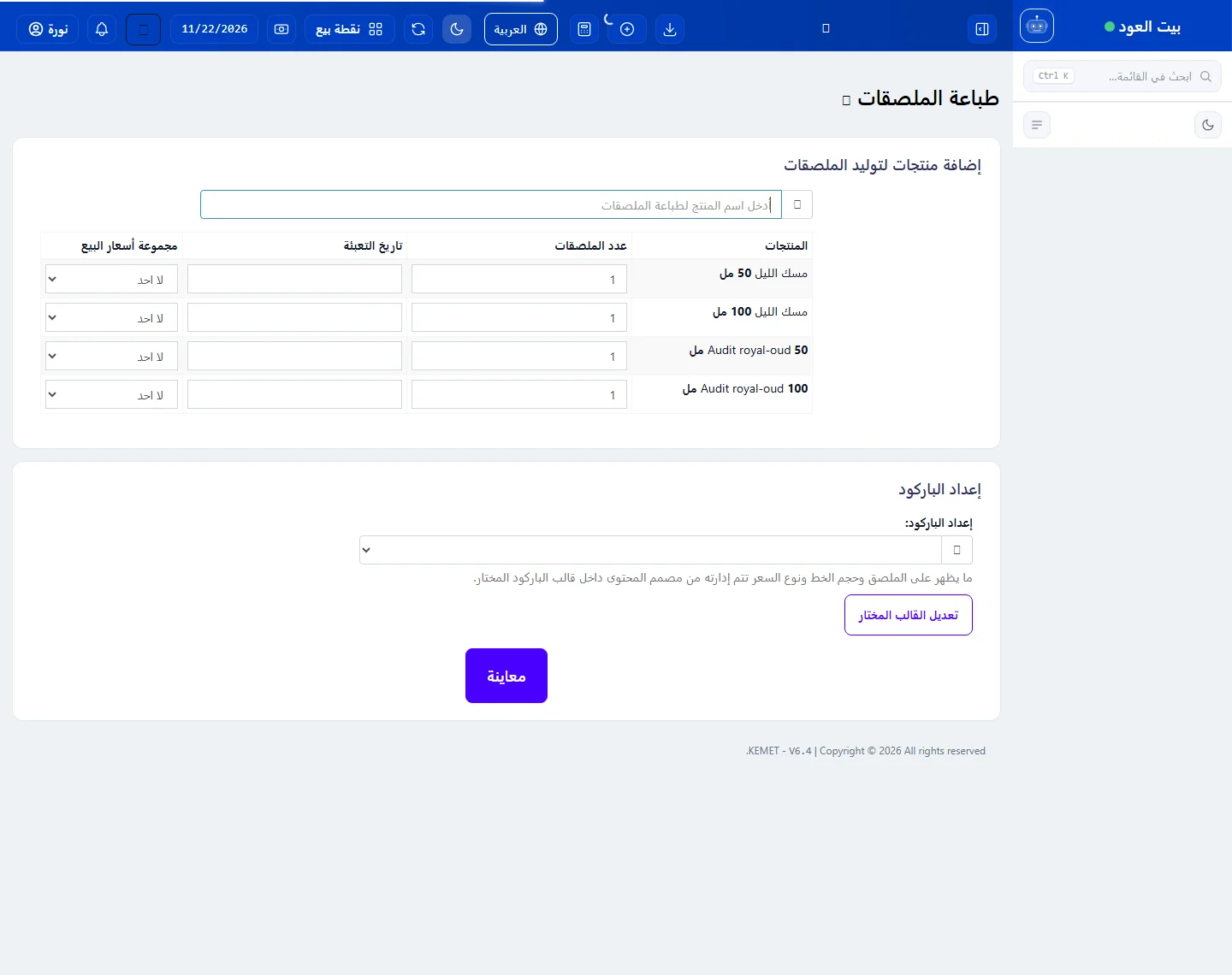
- Search by name or barcode.
- Pick the exact variation from the results.
- Enter the number of labels for each line.
- Select the barcode setting that matches the printer's paper.
- Open Preview and print a single test label before the batch.
Screen path in KEMET
/labels/showField reference
- Product/variation
- Determines which SKU is printed on the label.
- Quantity
- Number of copies to print for that selected row.
- Barcode setting
- Choose the label dimensions that match your printer paper.
Worked example
Select 50 ml and set one copy. Preview the layout and scan that label before making ten copies.
The test label fits the paper and scans as the 50 ml variation.
From ChatGPT or Claude
Give me the label screen for the selected products. I will choose variants and copy counts and review print preview.
- Identify selected items by name and code and resolve any similar matches.
- Ask for the labels link and open it while signed into KEMET.
- Select variants and copy counts on the page and preview the printout.
Verify the result
- Match the printed SKU to the product card and check the print count.
Troubleshooting
The results include the wrong product or option.
Use the exact variant code and review filters and branch access before committing.
The screen or action is missing.
Ask the company administrator to check the add-on, menu visibility, role permissions, and branch scope.
Screen access depends on company settings, the role, and its allowed branches.