 KEMET
Camera inventory count
Use visual counting to prepare a shelf quantity review for the intended branch.
Steps
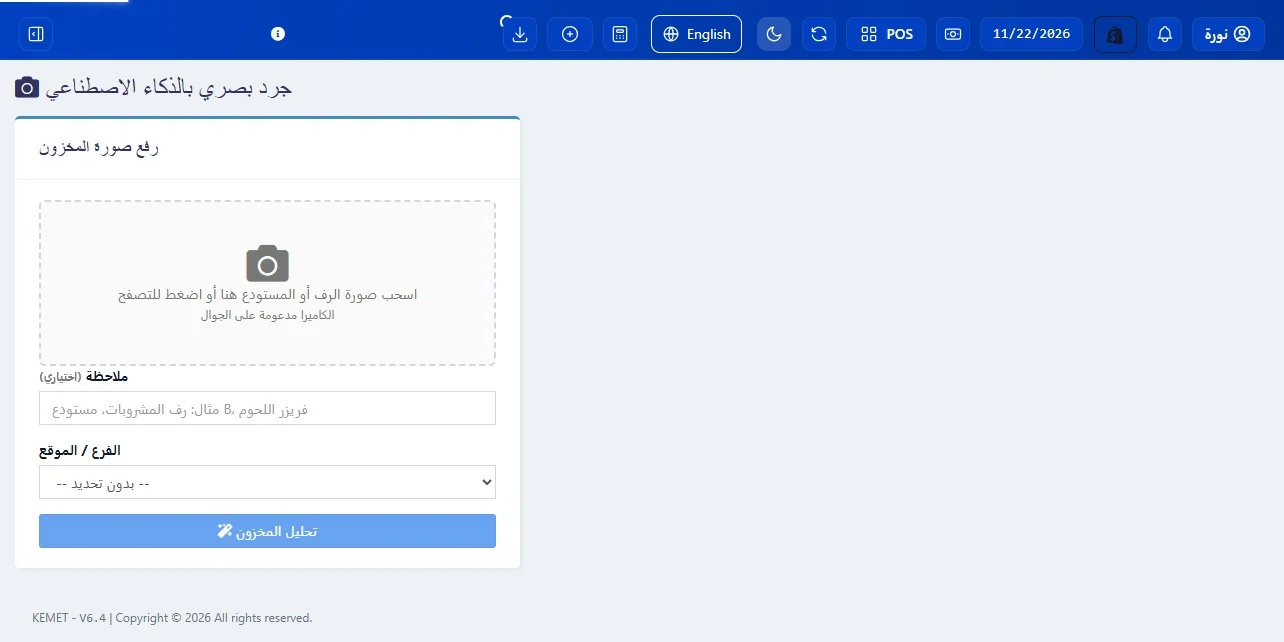
- Identify the branch and shelf before capturing images.
- Keep packaging and labels visible.
- Compare the proposed count and product option to a physical count.
- Review any discrepancy before using the stock count or adjustment workflow.
Screen path in KEMET
/assistant/inventory/countField reference
- Image
- Separate the items and make them readable in the capture.
- Count result
- Check the exact item, variation, and quantity against a manual count.
Worked example
Photograph three 100 ml bottles in a training count and correct any wrong reading.
Verify the variation, branch, and reviewed quantity before saving the count.
From ChatGPT or Claude
Help me with Camera inventory count. Ask which branch, reference, or dates you need, and show the relevant data before any changes.
Verify the result
- Review any discrepancy before using the stock count or adjustment workflow.
Troubleshooting
The result does not match the intended record.
Check the original reference, name, and filters before repeating the operation.
The screen or action is missing.
Ask the company administrator to check the add-on, menu visibility, role permissions, and branch scope.
Screen access depends on company settings, the role, and its allowed branches.