 KEMET
Claude & ChatGPT connector
Connect your Retail account and verify access in the KEMET connector screen.
Steps
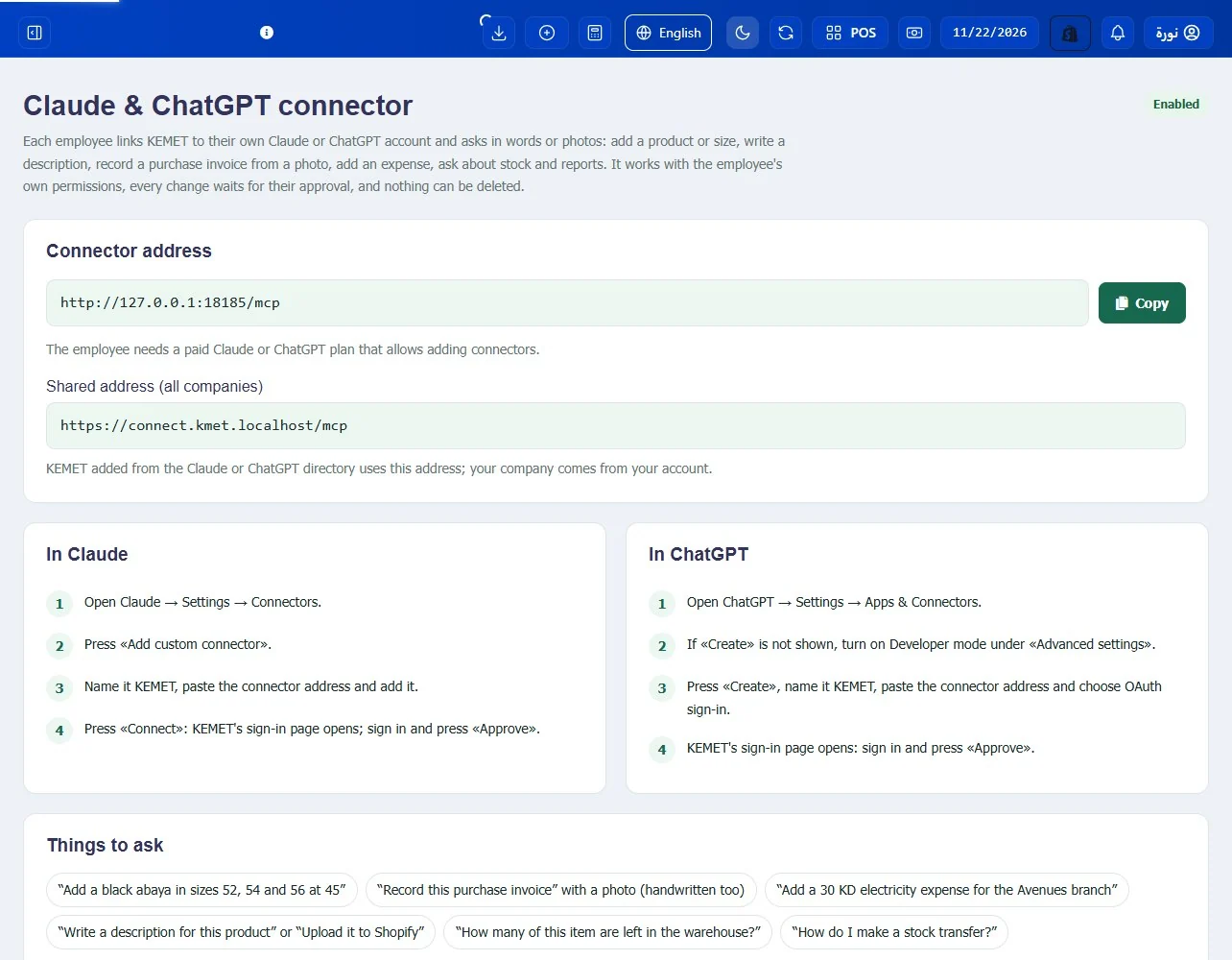
- Open Claude & ChatGPT connector from Settings.
- Use the connector address shown for your account.
- Finish authorization in KEMET's sign-in and consent flow.
- Start with a read-only request to verify the company and branch.
- Review the preview before approving a write.
Screen path in KEMET
/ai-connectorField reference
- Connector URL
- Use the Retail MCP address shown in connector setup.
- Account and access
- Sign in on the KEMET page as the intended user and branch scope.
- Approval
- Review the preview before confirming a write.
Worked example
Connect the training company and ask for the 100 ml Musk Al Layl stock in Salmiya.
Compare the item, variant and branch with KEMET, then test a separate write preview in training.
From ChatGPT or Claude
Show me how to start connecting and verify my company and permissions.
Related connector tools
- KEMET how-to
kemet_help
Verify the result
- Review the preview before approving a write.
Troubleshooting
The result does not match the intended record.
Check the original reference, name, and filters before repeating the operation.
The screen or action is missing.
Ask the company administrator to check the add-on, menu visibility, role permissions, and branch scope.
Screen access depends on company settings, the role, and its allowed branches.