 KEMET
Shopify settings
Review the connected Shopify store, fulfillment branch, and order settings.
Steps
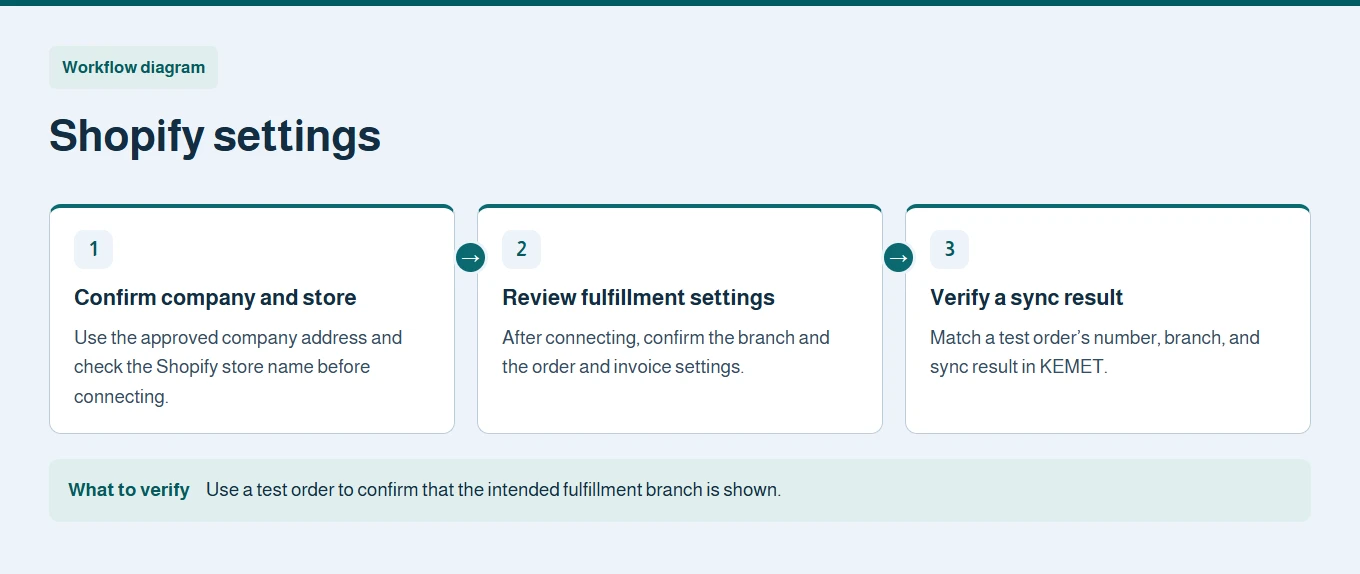
- Open Shopify settings and verify the store identity.
- Complete the connection through KEMET with an authorized account.
- Review fulfillment, order, and invoice settings.
- Check a trial order sync before relying on the connection.
Screen path in KEMET
/retail/shopify/settingsField reference
- Shop domain
- Identifies the Shopify shop to use.
- Branch or Shopify location
- Match Shopify fulfillment location to the intended KEMET branch.
- Payment mapping
- Check the payment method and account under company settings.
Worked example
Review a training shop's mapping to Salmiya, then inspect one test order.
Confirm the connection state and compare branch and payment mappings in the test record.
From ChatGPT or Claude
Give me a private KEMET link to configure Shopify settings.
- Ask for a private setup link and identify the employee or integration.
- Open the link with the same KEMET account and finish on the company page.
- Verify the outcome in KEMET. Enter any password or integration secret on its dedicated KEMET page.
Verify the result
- Check a trial order sync before relying on the connection.
Troubleshooting
An order or product is missing locally.
Check the connection, variant match and sync log before creating a sale or attempting another sync.
The screen or action is missing.
Ask the company administrator to check the add-on, menu visibility, role permissions, and branch scope.
Requires the applicable Shopify feature for the company and access for the signed-in user.
Training in the KEMET Academy after signing in /academy/native/shopify_orders