 KEMET
Shopify activity
Review Shopify activity to understand a stopped sync or match issue.
Steps
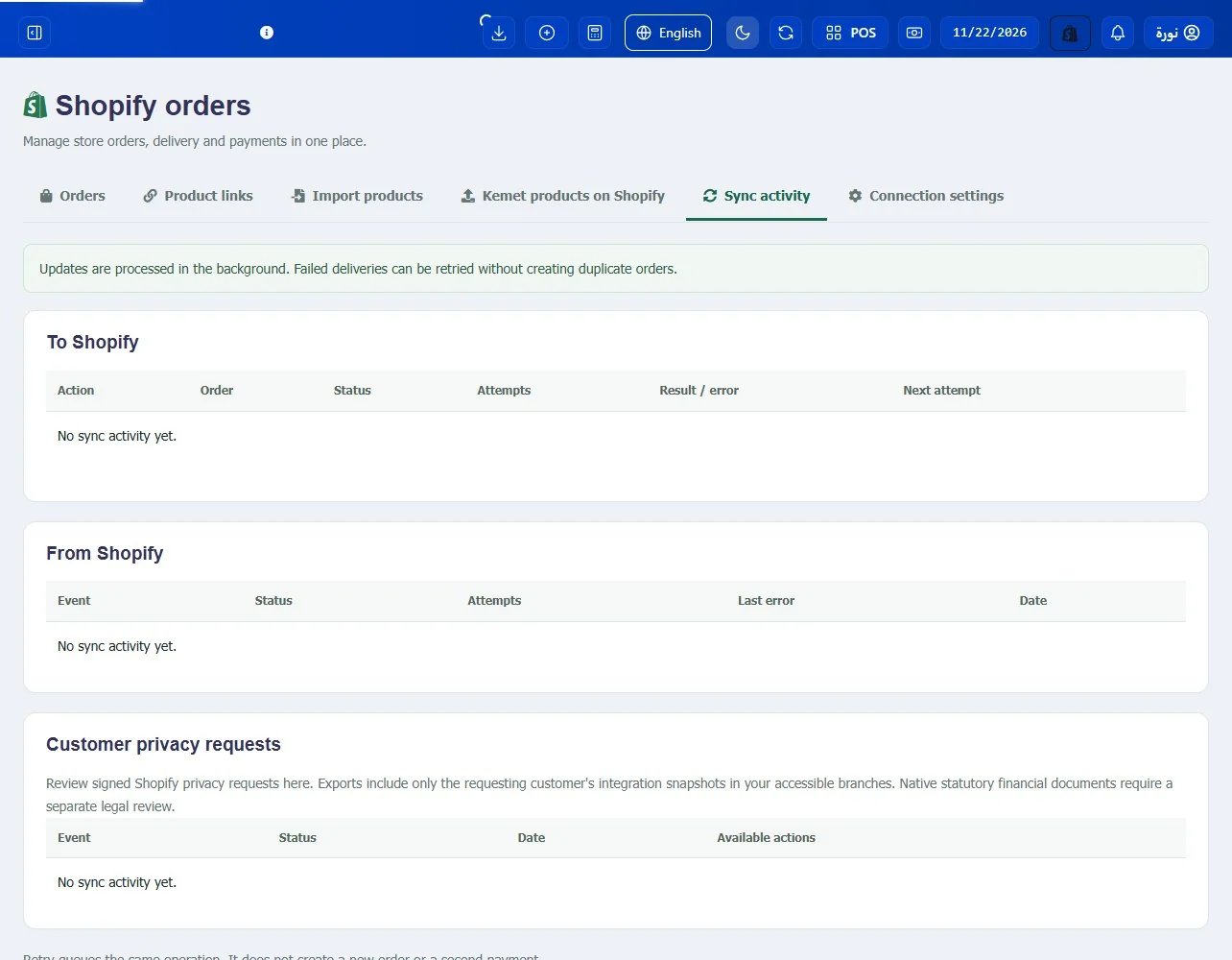
- Select a period or find the order or import operation.
- Read its status and details.
- Match the error to the relevant connection or code change.
- Check the local order or product before retrying a sync.
Screen path in KEMET
/retail/shopify/activityField reference
- Operation
- Check whether it concerns orders, products, or synchronization.
- Outcome
- Distinguish a finished, queued, or failed operation before retrying.
Worked example
Open a training product publication entry and review the operation result.
Compare the result with the product and the intended test shop.
Verify the result
- Check the local order or product before retrying a sync.
Troubleshooting
An order or product is missing locally.
Check the connection, variant match and sync log before creating a sale or attempting another sync.
The screen or action is missing.
Ask the company administrator to check the add-on, menu visibility, role permissions, and branch scope.
Requires the applicable Shopify feature for the company and access for the signed-in user.