 KEMET
Import Sales
Import sales using the current template and accurate item codes.
Steps
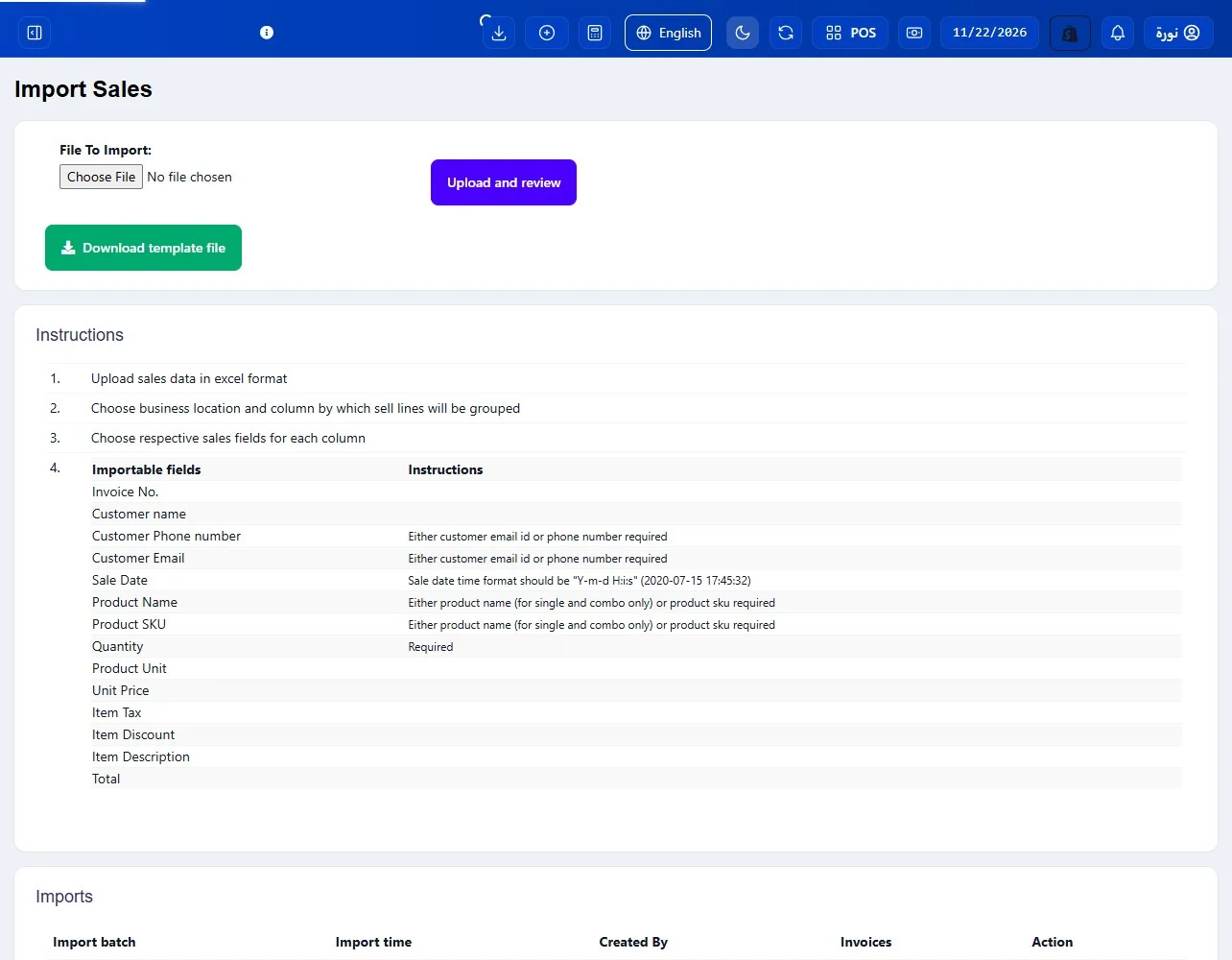
- Download the current Excel template or open the native field instructions.
- Choose Upload and review to open the mapping screen.
- Select the location and grouping column, then match each required field.
- Check the sample invoice grouping before submitting the batch.
- Reopen the imported invoice and compare its lines with the file.
Screen path in KEMET
/import-salesField reference
- Group sale lines by
- Choose the file column that identifies which rows belong to one invoice.
- Business location
- Sets the branch for the imported sales in this batch.
- Column mapping
- Match customer email or phone, product name or SKU, quantity and unit price as required by the preview.
Worked example
In the demo file, give two different SKU rows the reference S-201. Group by that reference and review both rows under one sale.
The import should contain one sale for S-201 at the selected branch with both item rows.
Verify the result
- Check the batch result and reopen the sale to verify its branch and line quantities.
Troubleshooting
The operation may have saved before the result appeared.
Search by invoice, customer and branch within the same period before saving again.
The screen or action is missing.
Ask the company administrator to check the add-on, menu visibility, role permissions, and branch scope.
Screen access depends on company settings, the role, and its allowed branches.