 KEMET
Discounts
Review discount rules and when they apply.
Steps
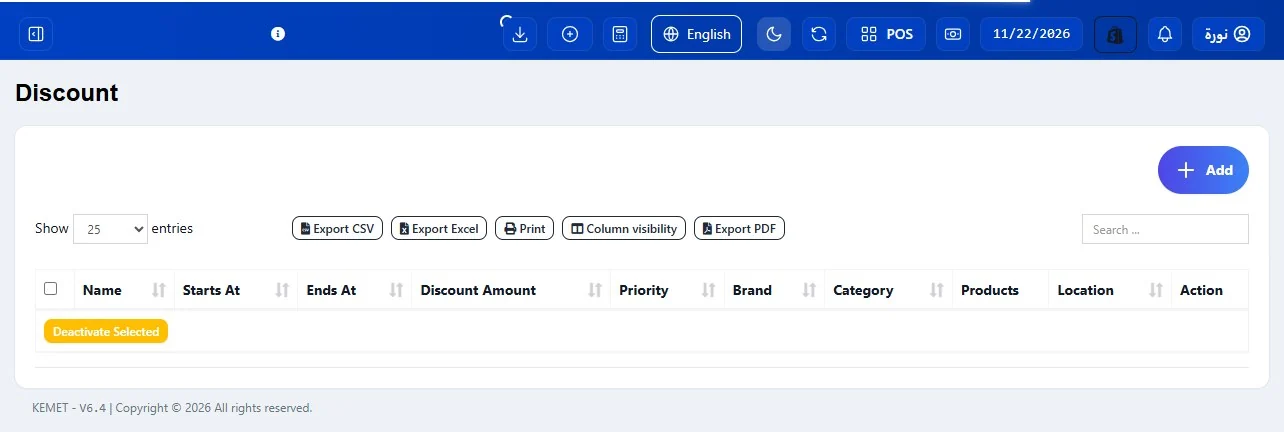
- Open the rule from the list.
- Check its scope, dates, and amount or percentage.
- Before changing its status, verify affected branches or products.
- Check the discount on a test sale preview before using it with a customer.
Screen path in KEMET
/discountField reference
- Discount type
- Choose a percentage or a fixed amount based on the rule.
- Start and end dates
- These limit when the discount is eligible.
- Brand or category scope
- Limits the products covered by the rule where the scope is configured.
Worked example
Preview a 10% discount on a 10.000 KWD demo item during the promotion’s dates, with no other adjustment.
The item qualifies under the rule and the discount is 1.000 KWD before other charges.
From ChatGPT or Claude
Help me with Discounts. Ask which branch, reference, or dates you need, and show the relevant data before any changes.
Related connector tools
- Discount summary
discount_discount_summary - Add a discount
discount_create_discount
Verify the result
- Preview an item outside the chosen category to confirm the scope is correct.
Troubleshooting
The operation may have saved before the result appeared.
Search by invoice, customer and branch within the same period before saving again.
The screen or action is missing.
Ask the company administrator to check the add-on, menu visibility, role permissions, and branch scope.
Screen access depends on company settings, the role, and its allowed branches.
Training in the KEMET Academy after signing in /academy/native/sales