 KEMET
Bulk edit
Stage changes to several products and review them together. You can bring a workbook back into the same editor.
Steps
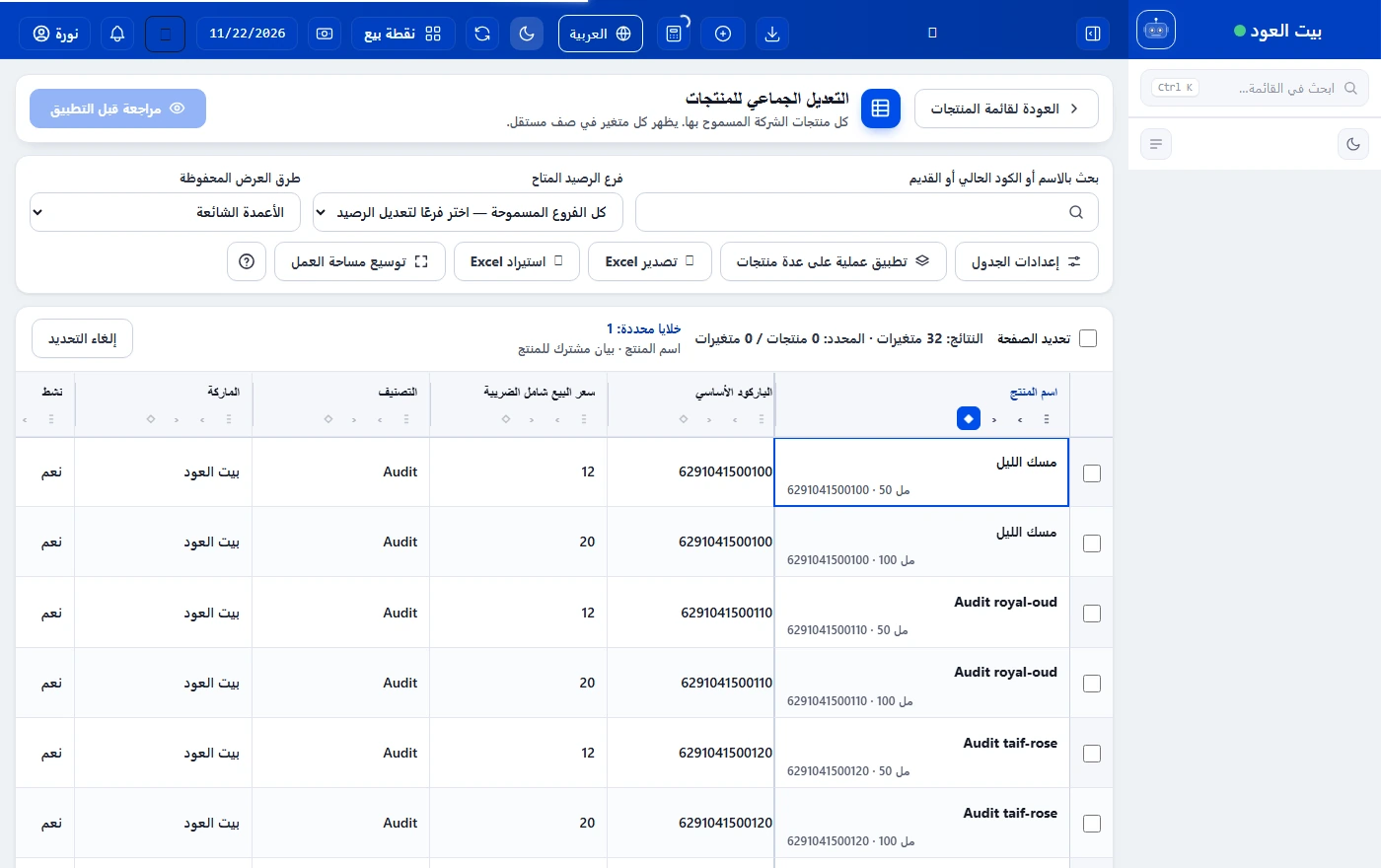
- Choose the products and branch in Bulk edit.
- Choose the columns to edit.
- For Excel, export those columns and leave the row identifiers intact.
- Edit the intended cells and import the spreadsheet back as staged edits.
- Preview the old and new values for each affected variation.
- Apply after review and reopen the same scope to verify.
Screen path in KEMET
/products/workspaceField reference
- Variation identifier
- Keeps each spreadsheet row bound to the exact catalog option. Leave it as exported.
- Editable columns
- Use the chosen columns only. Check whether the field is shared by the parent or belongs to the variation.
- Before and after
- Verifies the exact row and proposed change while the batch is still staged.
Worked example
Export two sizes of the same item and change the selling price of 100 ml from 8.000 to 9.000 KWD only.
Preview and later confirm that 50 ml keeps its price and only 100 ml is changed.
From ChatGPT or Claude
I want to bring back an exported bulk-edit workbook with new selling prices. Give me the edit upload link. Once uploaded, show the variation and its old and new prices.
- Export the intended scope and editable columns from the KEMET bulk editor.
- Ask for the edit upload link and upload the modified workbook on KEMET. Preserve each row identifier.
- Return to chat and request a preview, giving the upload reference if asked.
- Match each proposed value to the current value, variant, and branch. Refresh the preview if a row changes meanwhile.
- After approval, check saved values in the same bulk edit scope.
Related connector tools
- Change a product description
update_product_description - Write a product description
products_generate_description
Verify the result
- Reopen the same filters and compare the two option rows after applying.
Troubleshooting
The workbook was rejected or a cell is read-only.
Export again from the same editor, preserve row IDs, and check field and branch access.
The screen or action is missing.
Ask the company administrator to check the add-on, menu visibility, role permissions, and branch scope.
Screen access depends on company settings, the role, and its allowed branches.