 KEMET
Store settings
Maintain the basic details customers see on the storefront.
Steps
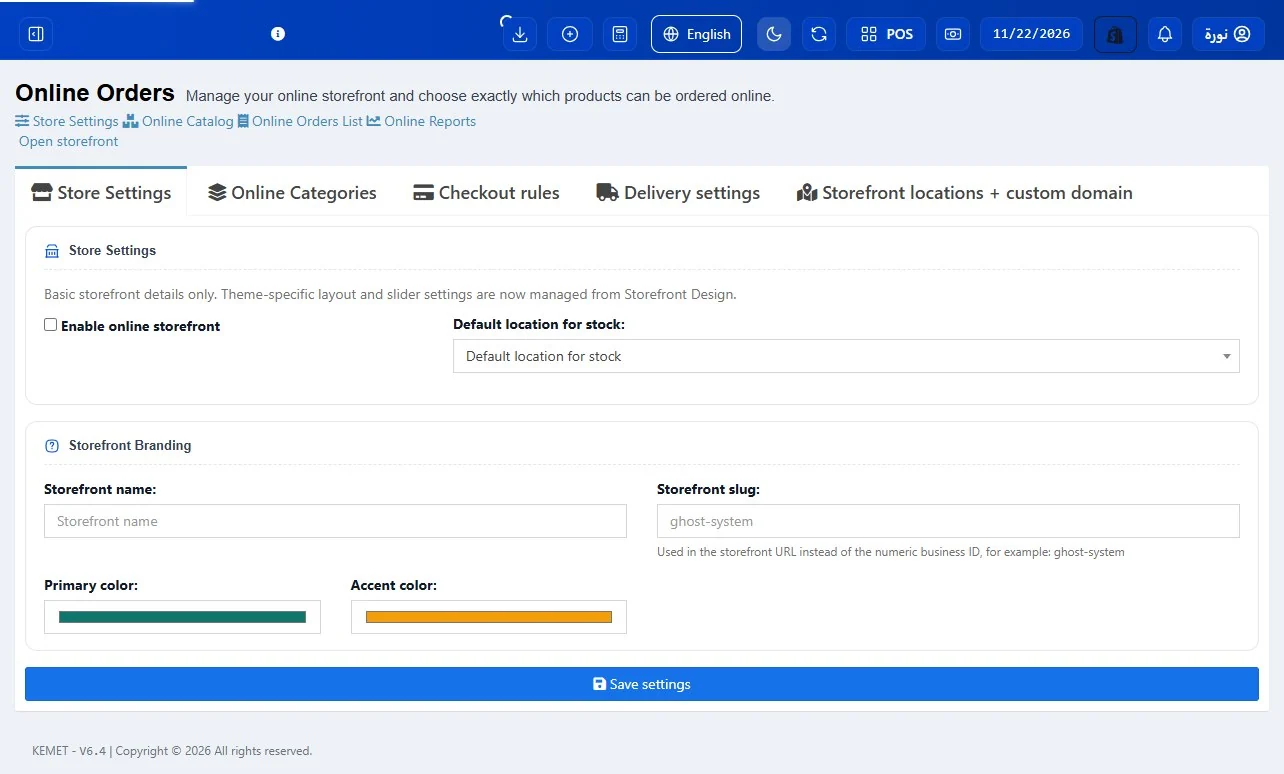
- Open Store settings.
- Review the displayed name, description, and contact details.
- Save the intended change.
- Verify it on the public storefront.
Screen path in KEMET
/online-orders/settings/storeField reference
- Store identity
- Review the name and information shown to customers.
- Store availability
- Check whether the storefront is available under the current settings.
Worked example
Change the display name of a training store and load its public home page.
Compare the visible name and details against the saved configuration.
Verify the result
- Verify it on the public storefront.
Troubleshooting
The result does not match the intended record.
Check the original reference, name, and filters before repeating the operation.
The screen or action is missing.
Ask the company administrator to check the add-on, menu visibility, role permissions, and branch scope.
Requires the applicable Online Orders feature for the company and access for the signed-in user.