 KEMET
User Access
Review which company users can access the assistant.
Steps
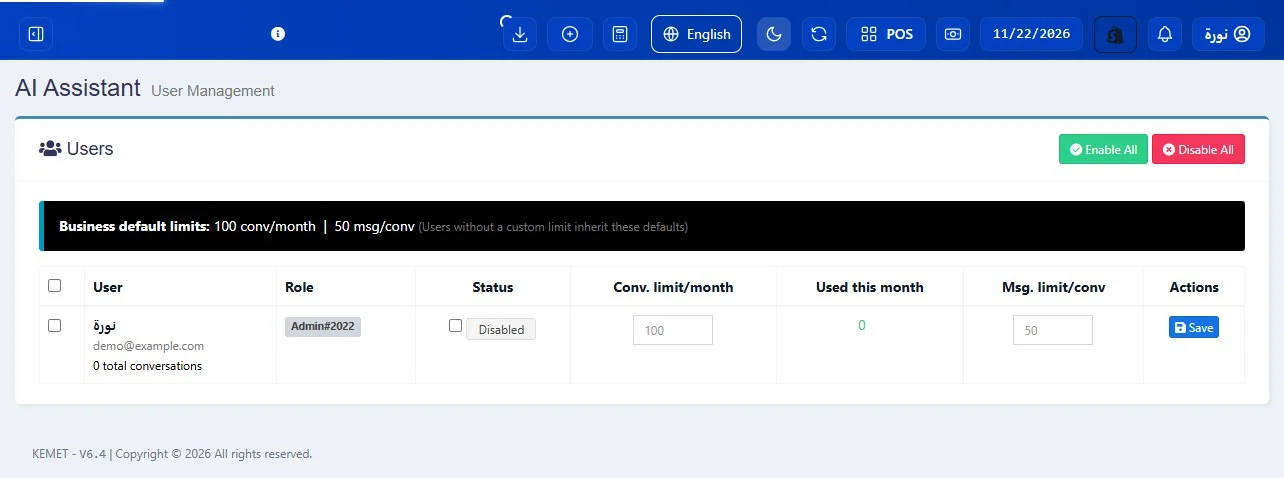
- Find the user by name.
- Check their account status and role.
- If changing access, check the intended account and change before saving.
- Verify the person can use the assistant actions their role requires.
Screen path in KEMET
/assistant/usersField reference
- User
- Select a staff account in the same company.
- Assistant access
- Review connector availability along with the user's native product and invoice permissions.
Worked example
Check that a Salmiya employee can run an allowed lookup and try a different branch.
Confirm the allowed branch works and writes still require permission and review.
Verify the result
- Verify the person can use the assistant actions their role requires.
Troubleshooting
The result does not match the intended record.
Check the original reference, name, and filters before repeating the operation.
The screen or action is missing.
Ask the company administrator to check the add-on, menu visibility, role permissions, and branch scope.
Screen access depends on company settings, the role, and its allowed branches.