 KEMET
Journal Entries
Find journal entries and review their source, debit, credit, and posting status.
Steps
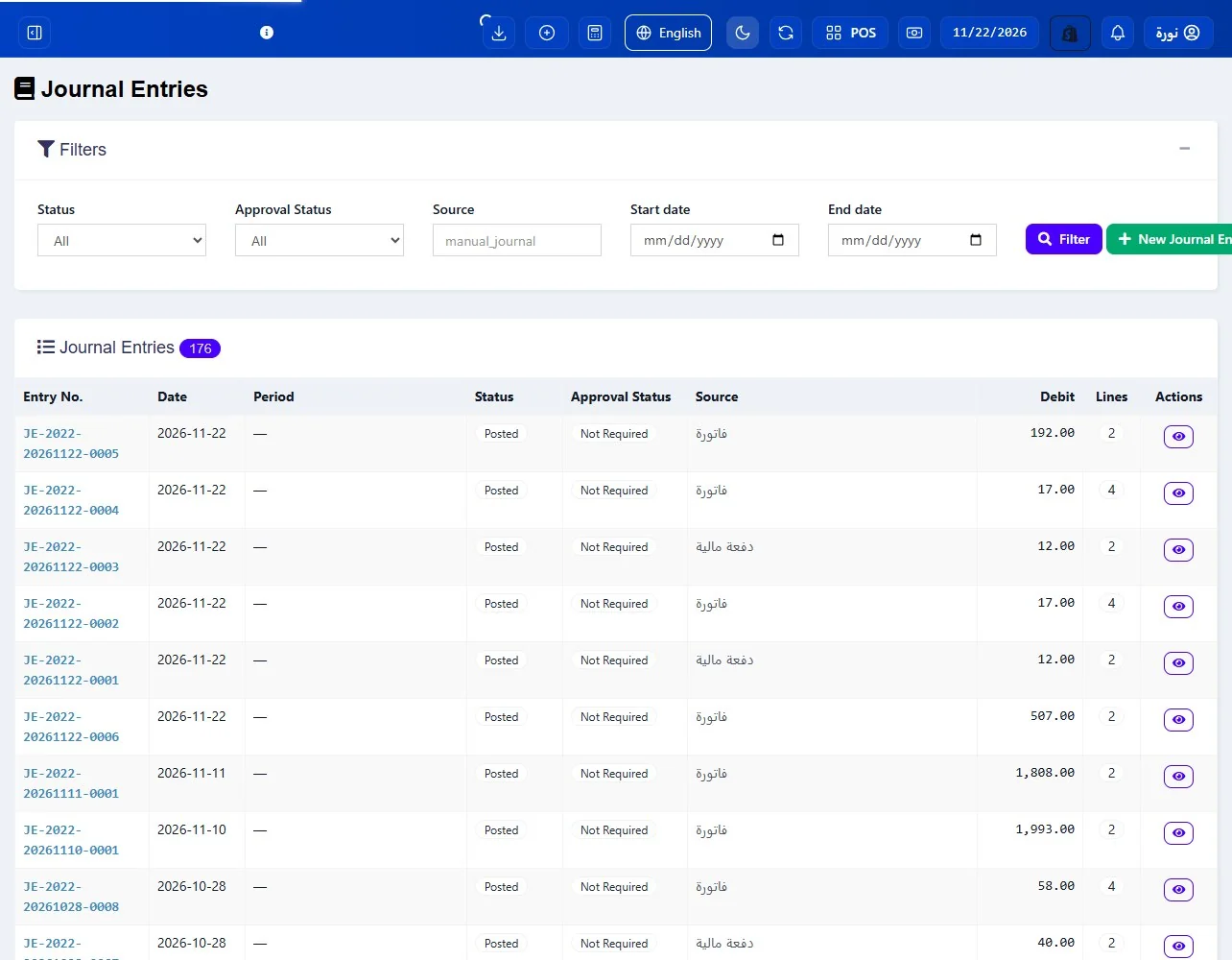
- Set period, branch, and status as required.
- Open the entry by reference.
- Check debit and credit totals and the source document or transaction.
- Verify approval status before reconciling.
Screen path in KEMET
/account/journal-entriesField reference
- Reference
- Identifier that links an entry to the source document or internal accounting memo.
- Posting status
- Indicates whether an entry has been posted. Check it before using the entry for reconciliation.
- Debit and credit
- Totals should agree. Open the entry to identify accounts, posting dates and lines.
Worked example
Locate journal entry JE-010 for an Internet bill of 250 and review the expense and payment accounts.
The same entry shows 250 in debit and 250 in credit with the intended reference and state.
From ChatGPT or Claude
Help me with Journal Entries. Ask which branch, reference, or dates you need, and show the relevant data before any changes.
Verify the result
- Open the details and reconcile each line with the supporting document.
- Check the same date range in the affected account statements after posting.
Troubleshooting
The amount does not match the document or expected balance.
Check date, branch, source, and prior payments with the account owner before posting another entry.
The screen or action is missing.
Ask the company administrator to check the add-on, menu visibility, role permissions, and branch scope.
Screen access depends on company settings, the role, and its allowed branches.