 KEMET
Chart of Accounts
Review account categories and parent-child structure.
Steps
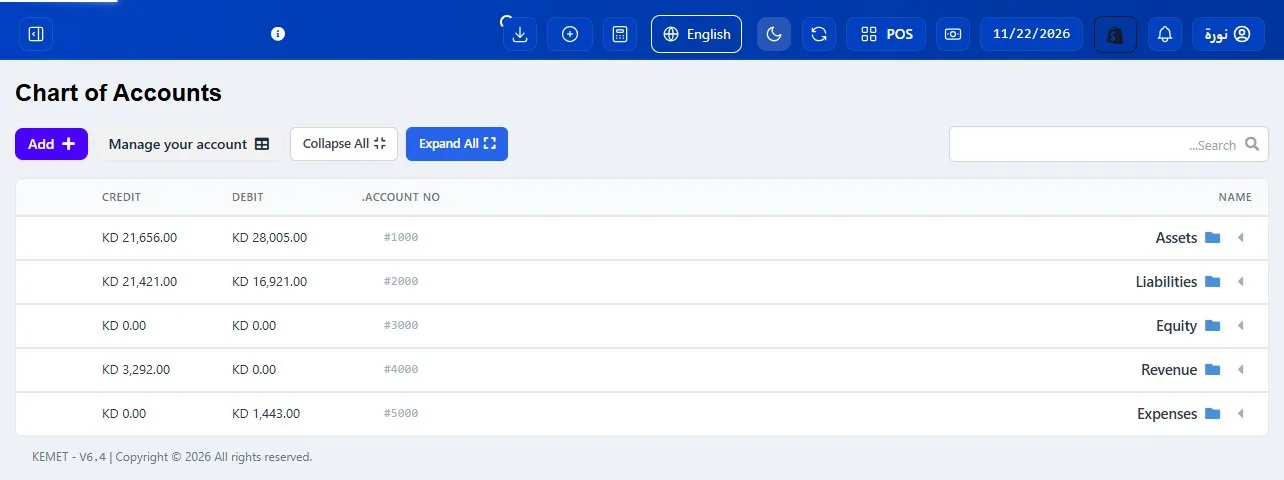
- Find the account by name or code.
- Check its type and position in the chart.
- Confirm mapping for payments or adjustments with the accountant before changing it.
- Verify the account is available in the relevant journal entry form.
Screen path in KEMET
/account/chart-of-accountsField reference
- Account number
- Unique code used to identify the account on statements and mappings.
- Type and parent
- Indicate the account classification and where it belongs in the tree.
- Account status
- Check whether the account is active and suitable for posting or serves as a grouping account.
Worked example
Find the bank account numbered 1015 and expand its parent to see where it sits in current assets.
The tree shows the expected account number, name and parent under the company chart.
Verify the result
- Search by account code to resolve similar names.
- Confirm the intended account can be selected on the form that will use it.
Troubleshooting
The amount does not match the document or expected balance.
Check date, branch, source, and prior payments with the account owner before posting another entry.
The screen or action is missing.
Ask the company administrator to check the add-on, menu visibility, role permissions, and branch scope.
Screen access depends on company settings, the role, and its allowed branches.