 KEMET
Account Mapping
Check which accounts system sales, purchases, and payments post to under your configuration.
Steps
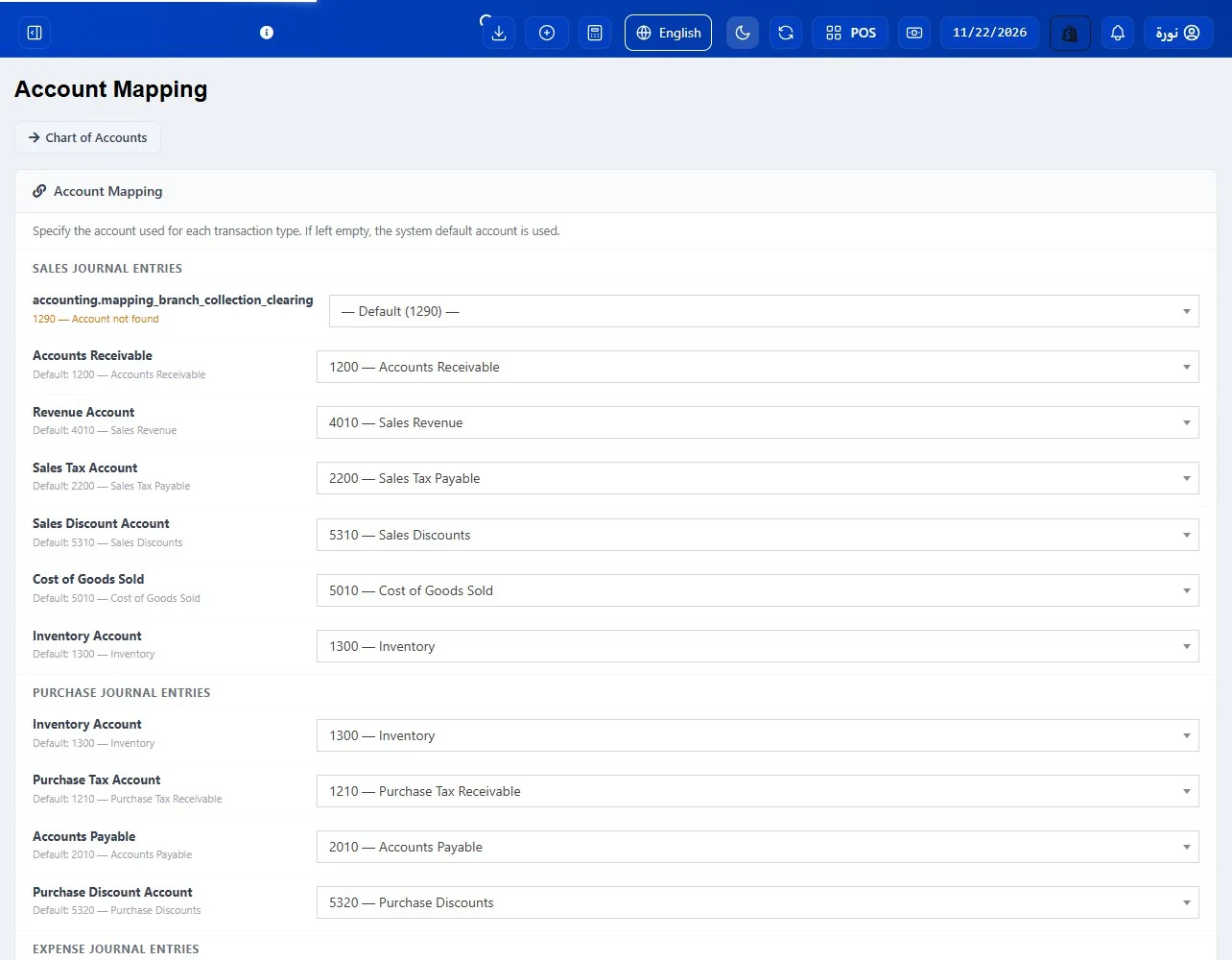
- Review the mapping rule for each transaction type.
- Match the selected account to the chart of accounts.
- Confirm the change with the accountant before saving.
- Check a trial posting to verify the intended accounts.
Screen path in KEMET
/account/account-mappingField reference
- Mapping key
- Identifies the event that uses the account, such as collection clearing between branches.
- Default account code
- A preset code, which can be unavailable in a company chart. Check the effective account in the saved mapping.
- Selected account
- The enabled company account associated with that event.
Worked example
Inspect branch collection clearing when the default badge shows 1290 and the screen says Account not found.
You establish whether a valid posting account is already saved or the mapping needs an accountant-approved choice.
Verify the result
- Check the code and status in the company chart and reload the mapping to verify the saved selection.
- Validate the resulting account on an authorized sample movement in a test company.
Troubleshooting
The amount does not match the document or expected balance.
Check date, branch, source, and prior payments with the account owner before posting another entry.
The screen or action is missing.
Ask the company administrator to check the add-on, menu visibility, role permissions, and branch scope.
Screen access depends on company settings, the role, and its allowed branches.