 KEMET
Accounting Backfill
Review accounting backfill for earlier activity with the accounting administrator.
Steps
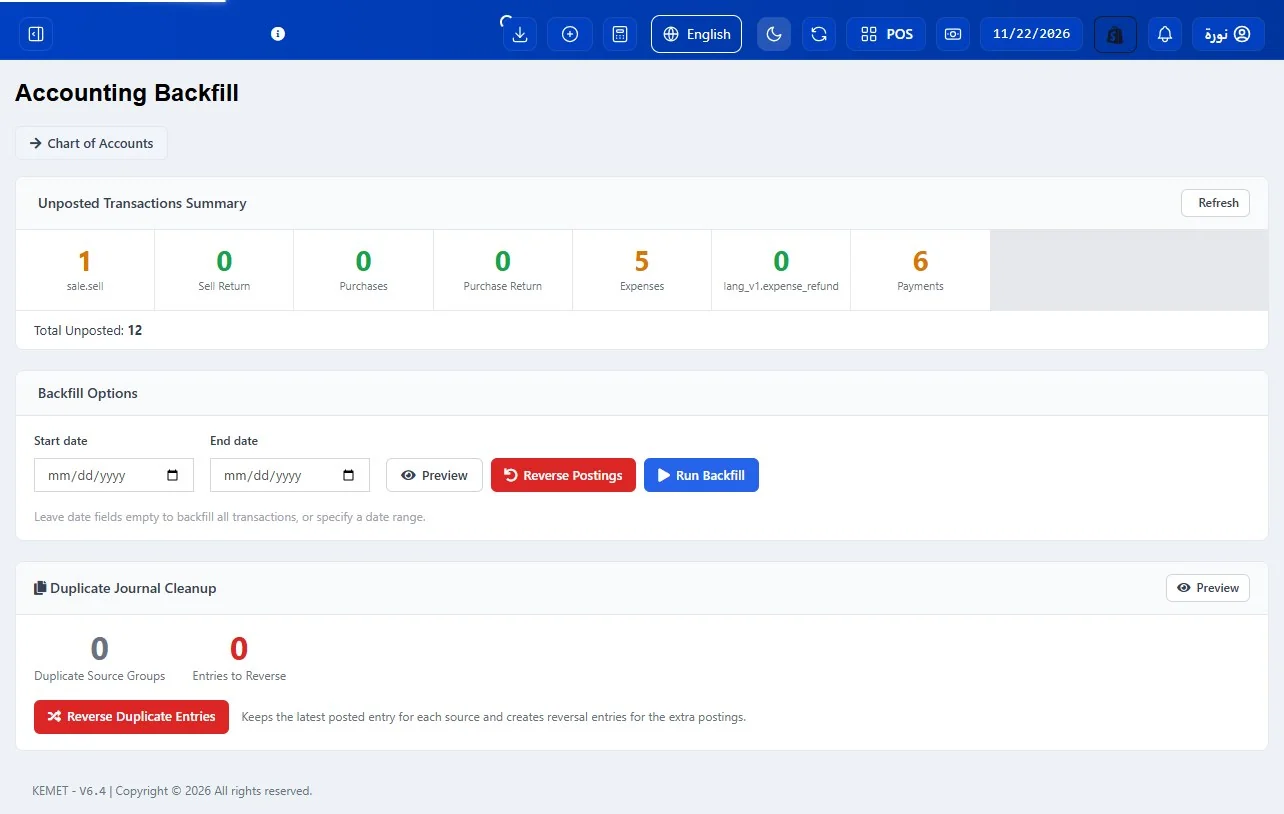
- Choose the intended date range.
- Read the backfill check or preview presented by the tool.
- Compare candidate entries to already posted transactions.
- Apply only with the responsible administrator's approval and reconcile the result.
Screen path in KEMET
/account/backfillField reference
- From and to
- Dates used to scope the preview and backfill.
- Preview
- Shows the documents and accounting gaps the repair is expected to address.
- Duplicate preview
- A separate check for duplicate groups. Review supporting document references before cleanup.
Worked example
Preview 1–3 November for missing accounting entries after comparing sales documents with the ledger.
You have a scoped list of candidates and references for approval before applying the repair.
Verify the result
- Save the preview and check affected references against the original documents.
- After an authorized repair, repeat the same preview and reconcile the posted result.
Troubleshooting
The amount does not match the document or expected balance.
Check date, branch, source, and prior payments with the account owner before posting another entry.
The screen or action is missing.
Ask the company administrator to check the add-on, menu visibility, role permissions, and branch scope.
Screen access depends on company settings, the role, and its allowed branches.