 KEMET
Barcode Settings
Configure barcode label layout for your printer and paper.
Steps
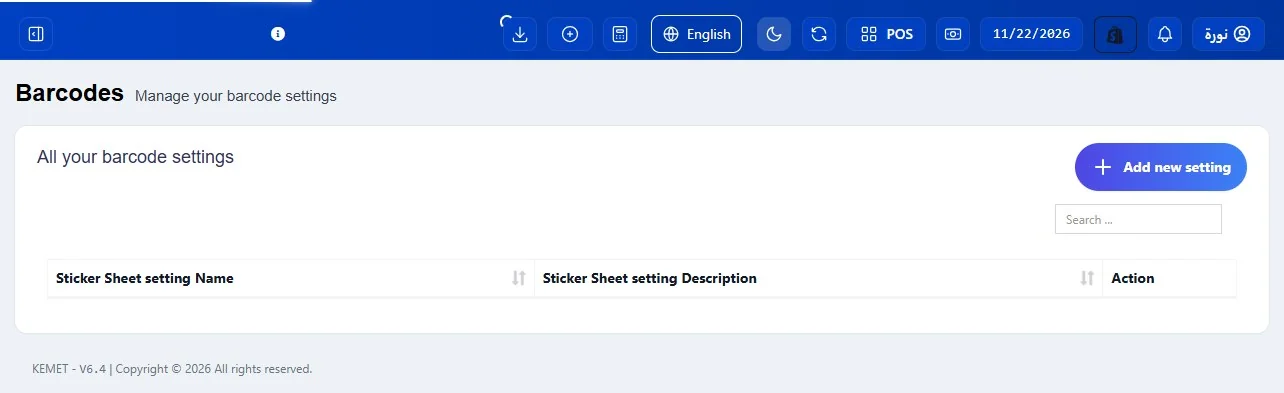
- Check existing settings before adding a size.
- Enter paper and label dimensions and margins from printer specifications.
- Save and select the setting from Print Labels.
- Print a single test and verify the code scans.
Screen path in KEMET
/barcodesField reference
- Size and columns
- Match the label layout to the physical sheet.
- Scaling
- Review print size before the batch.
Worked example
Print one training sheet.
Scan a label in the first and last columns to verify item and size.
Verify the result
- Print a single test and verify the code scans.
Troubleshooting
The result does not match the intended record.
Check the original reference, name, and filters before repeating the operation.
The screen or action is missing.
Ask the company administrator to check the add-on, menu visibility, role permissions, and branch scope.
Screen access depends on company settings, the role, and its allowed branches.