 KEMET
Company WhatsApp
Review company WhatsApp connection and notification settings.
Steps
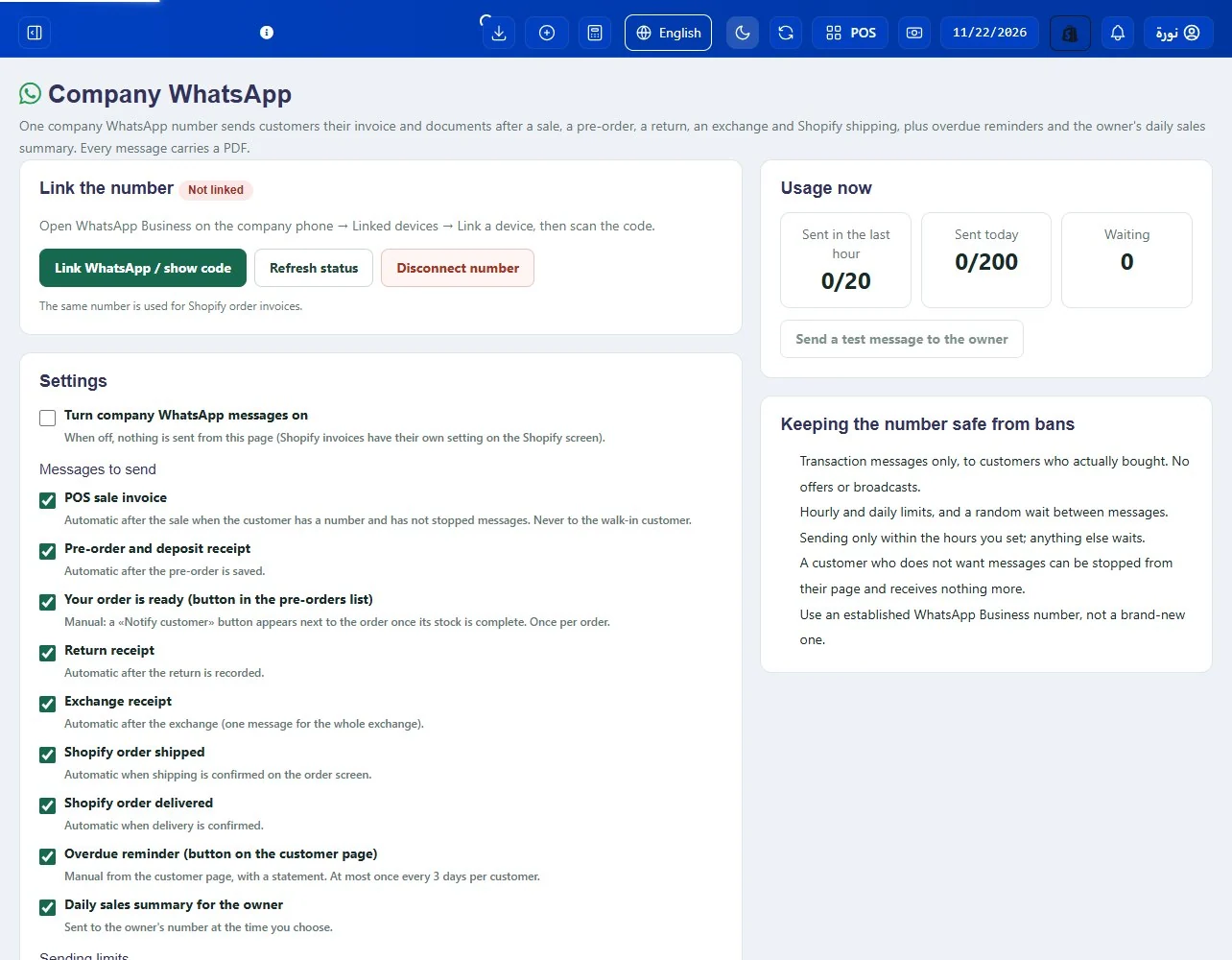
- Open Company WhatsApp and check connection status.
- If connecting a number, follow the steps in KEMET with an authorized company account.
- Review enabled messages and their scope.
- Test with an approved test recipient before messaging customers.
Screen path in KEMET
/company-whatsappField reference
- Connection status
- Check whether the channel is ready before testing.
- Message controls
- Review reminders or automatic messages for the intended workflow.
Worked example
Send one approved message to a training recipient.
Compare the activity result with the recipient's test device.
From ChatGPT or Claude
Give me a private KEMET link to configure Company WhatsApp.
- Ask for a private setup link and identify the employee or integration.
- Open the link with the same KEMET account and finish on the company page.
- Verify the outcome in KEMET. Enter any password or integration secret on its dedicated KEMET page.
Related connector tools
- WhatsApp payment reminder
whatsapp_payment_reminder - WhatsApp «your order is ready»
whatsapp_order_ready
Verify the result
- Test with an approved test recipient before messaging customers.
Troubleshooting
The result does not match the intended record.
Check the original reference, name, and filters before repeating the operation.
The screen or action is missing.
Ask the company administrator to check the add-on, menu visibility, role permissions, and branch scope.
Screen access depends on company settings, the role, and its allowed branches.