 KEMET
Business Settings
Configure company data and system behavior within your role.
Steps
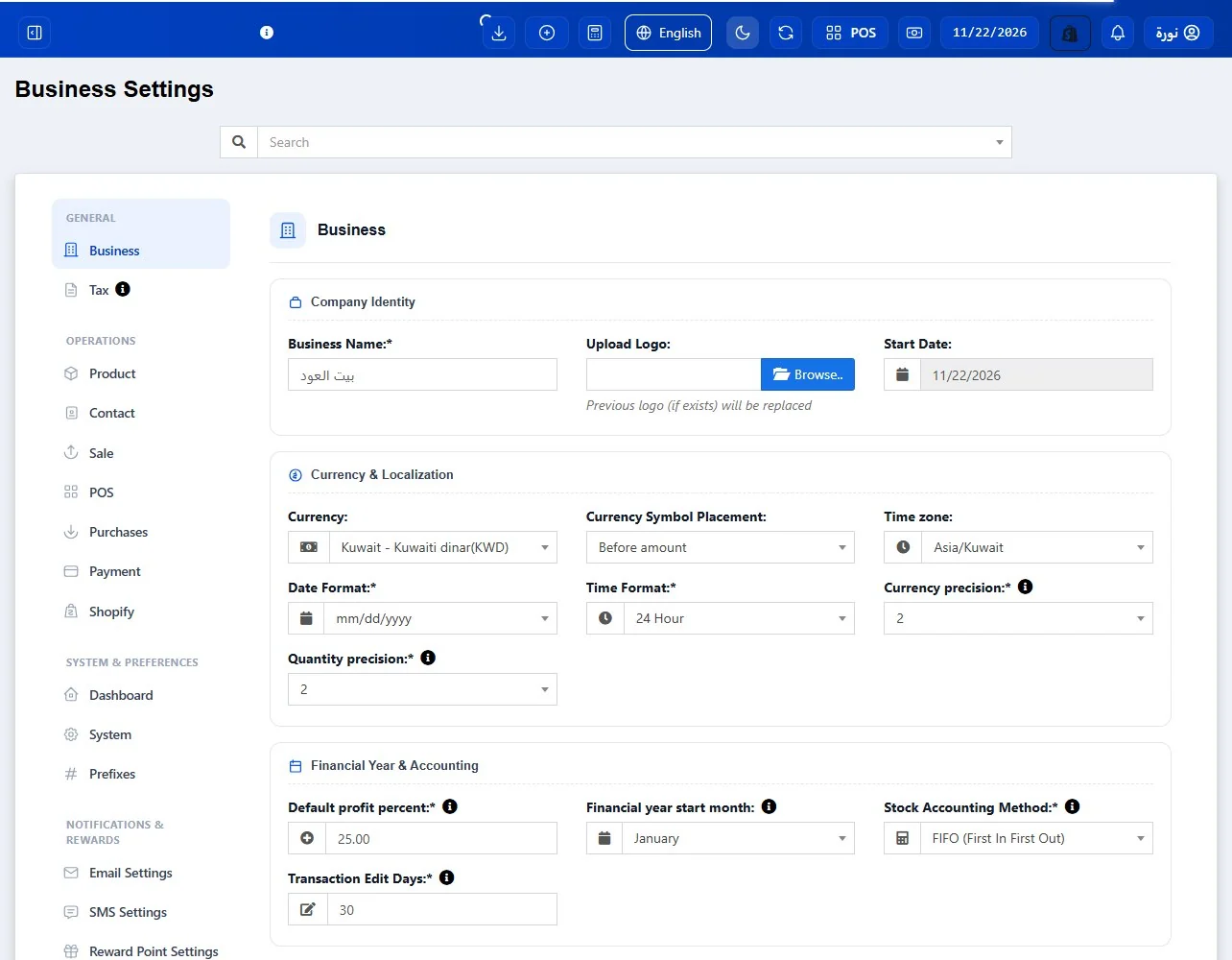
- Open the related settings tab, such as business profile, products, or sales.
- Review the current value and which branches or invoices may be affected.
- Change the intended field and review the tab before saving.
- Check the screen that uses the setting.
Screen path in KEMET
/business/settingsField reference
- Settings section
- Choose the relevant area such as sales or invoices.
- Value
- Compare before and after and identify the affected screen.
Worked example
Test a single display change in training.
Verify the saved value and effect on the intended screen.
From ChatGPT or Claude
Read the current value of the company setting. Show any proposed change for approval before saving.
Related connector tools
- Settings: list a screen
settings_list
Verify the result
- Check the screen that uses the setting.
Troubleshooting
The result does not match the intended record.
Check the original reference, name, and filters before repeating the operation.
The screen or action is missing.
Ask the company administrator to check the add-on, menu visibility, role permissions, and branch scope.
Screen access depends on company settings, the role, and its allowed branches.