 KEMET
Face attendance
Review face-attendance settings within company policy and your branch scope.
Steps
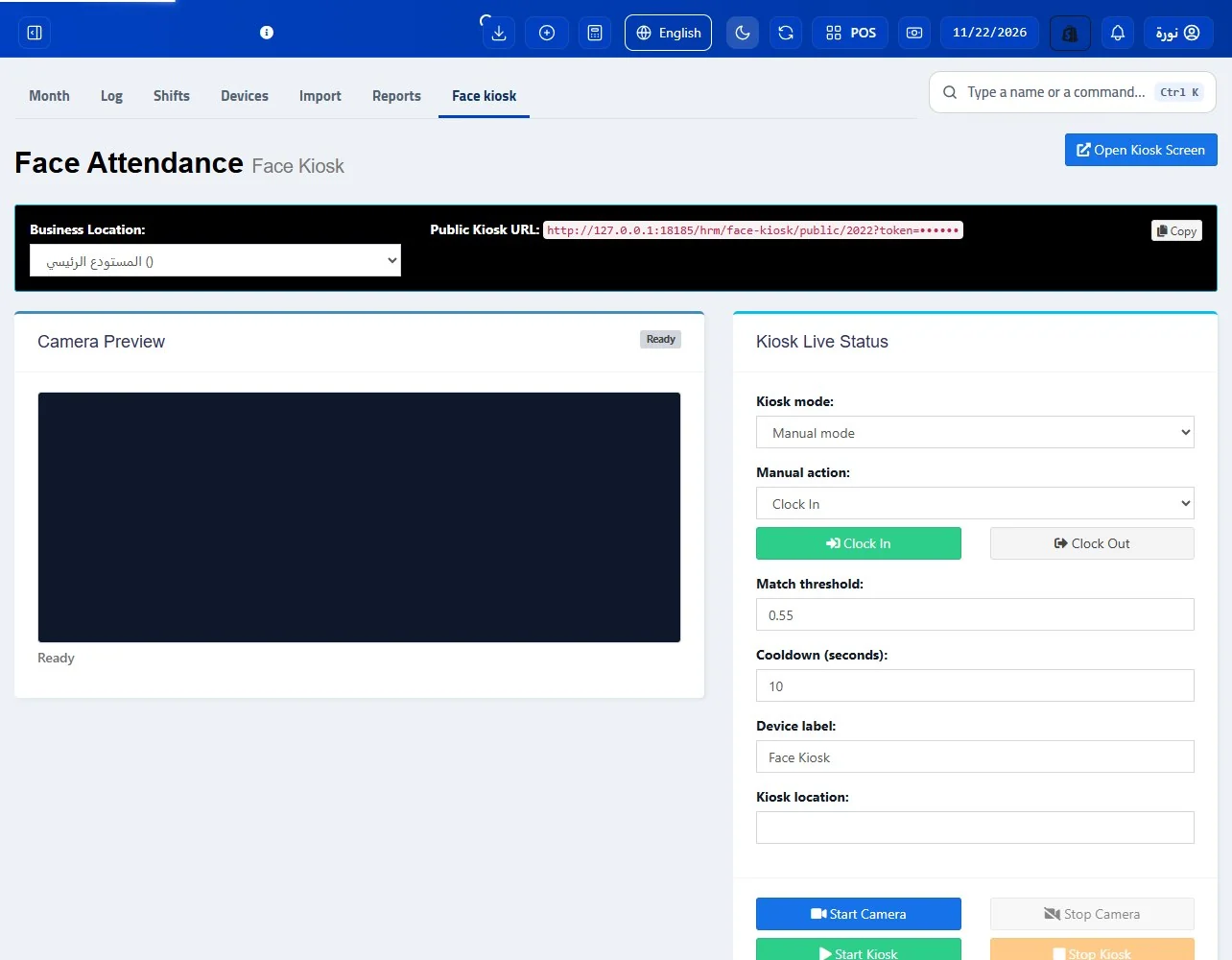
- Open Face attendance from Attendance.
- Verify the branch and device before setup.
- Follow the displayed staff consent and enrollment steps.
- Confirm a test event appears in the attendance log.
Screen path in KEMET
/hrm/face-attendanceField reference
- Camera
- Select the intended device and confirm browser permission.
- Attendance event
- Check the intended event and employee account before recording.
Worked example
Record a test attendance event for the designated training employee.
Open the daily log and verify the event type and time.
Verify the result
- Confirm a test event appears in the attendance log.
Troubleshooting
The row refers to a different employee or day.
Verify branch, employee identifier, and date before approving leave, correcting attendance, or recording a payment.
The screen or action is missing.
Ask the company administrator to check the add-on, menu visibility, role permissions, and branch scope.
Requires the applicable Essentials feature for the company and access for the signed-in user.