 KEMET
Attendance devices
Review attendance devices and their branch assignment.
Steps
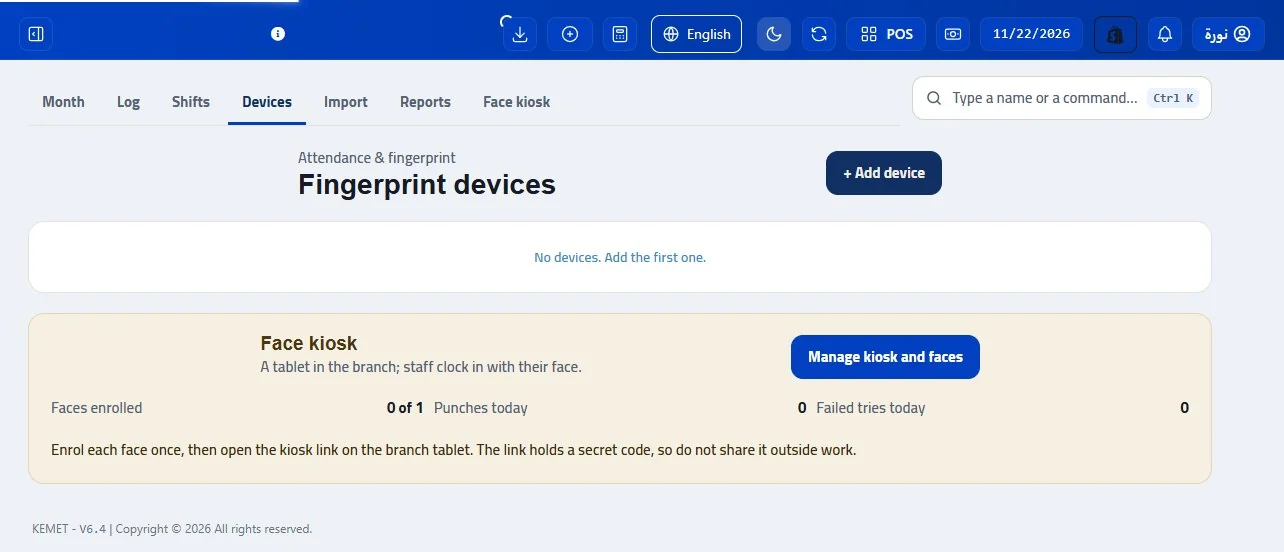
- Open Devices and find the intended unit.
- Check connection status and visible last activity.
- Verify branch and employee mappings under company settings.
- After setup, review a test event for the correct employee.
Screen path in KEMET
/hrm/devicesField reference
- Device
- Use its name or identity to distinguish branch devices.
- Connection status
- Check whether events arrive from the intended device.
Worked example
Compare one training branch device with a known test check-in.
Check the log for one event with the expected employee and time.
Verify the result
- After setup, review a test event for the correct employee.
Troubleshooting
The row refers to a different employee or day.
Verify branch, employee identifier, and date before approving leave, correcting attendance, or recording a payment.
The screen or action is missing.
Ask the company administrator to check the add-on, menu visibility, role permissions, and branch scope.
Requires the applicable Essentials feature for the company and access for the signed-in user.