 KEMET
Modules
Review modules and versions from the authorized admin panel.
Steps
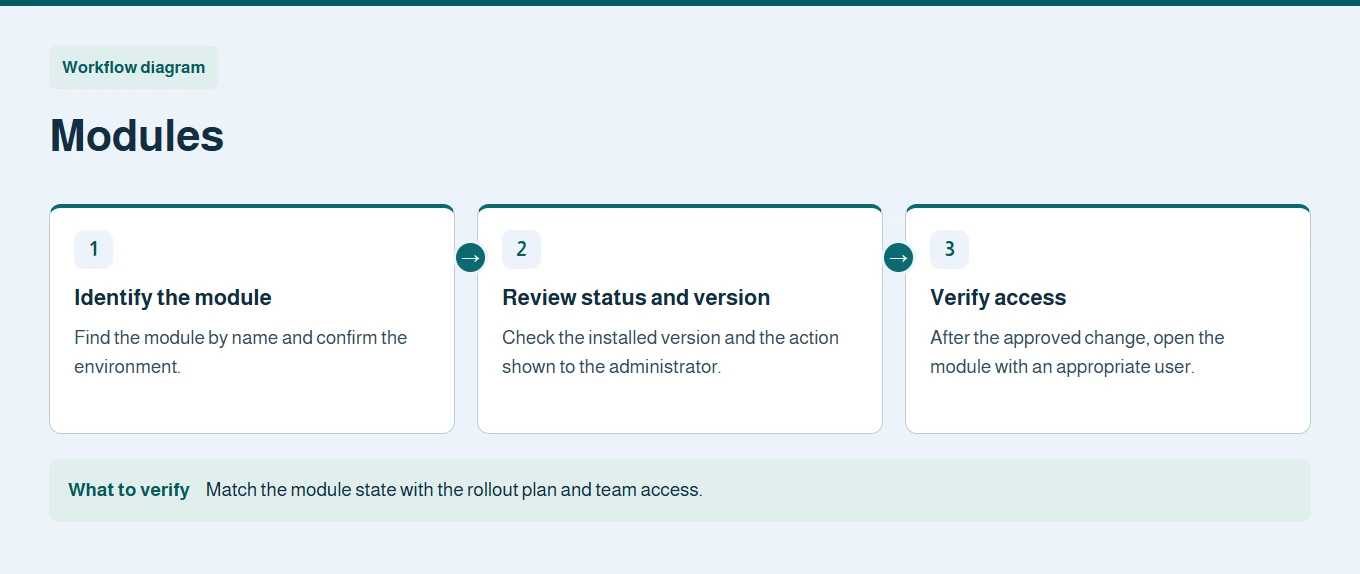
- Open Modules.
- Check the module name, status, and version.
- Confirm the authorized rollout before enabling or updating a module.
- Open the module again to verify that access is correct.
Screen path in KEMET
/manage-modulesField reference
- Module name
- Match the module to the workflow you are diagnosing.
- Status
- Check module availability and activation before diagnosing a missing screen.
Worked example
A branch user cannot see stocktake, so check the module and permissions first.
Confirm the screen is visible from an authorized user account after checking access.
Verify the result
- Open the module again to verify that access is correct.
Troubleshooting
The result does not match the intended record.
Check the original reference, name, and filters before repeating the operation.
The screen or action is missing.
Ask the company administrator to check the add-on, menu visibility, role permissions, and branch scope.
Screen access depends on company settings, the role, and its allowed branches.