 KEMET
Purchase Order
Track ordered and received quantities against a supplier order.
Steps
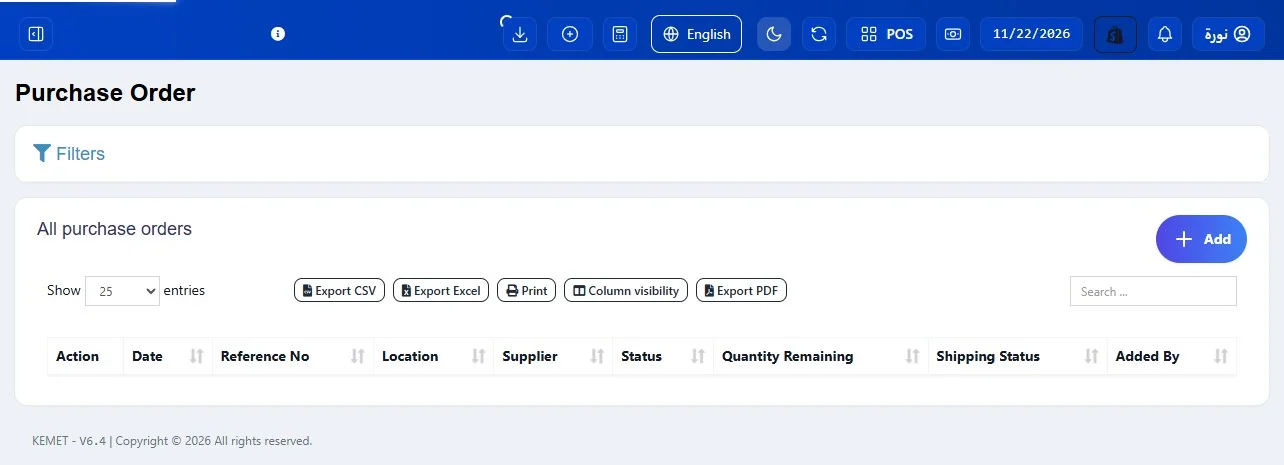
- Find the order by reference or supplier.
- Review the ordered and received quantities.
- Use the associated receipt workflow when goods arrive.
- Verify supplier, branch, and quantities before saving the purchase invoice.
Screen path in KEMET
/purchase-orderField reference
- Supplier
- The supplier expected to deliver the items on the order.
- Business location
- The receiving location to use when completing the purchase receipt.
- Ordered and received
- Compare requested quantities with what has already arrived.
Worked example
Order ten demo units. If six arrive, record the actual six in the authorized receipt workflow and verify what is still expected.
The order or its linked documents show six received and four pending.
From ChatGPT or Claude
Help me with Purchase Order. Ask which branch, reference, or dates you need, and show the relevant data before any changes.
Related connector tools
- Receive a purchase order
purchase_convert_purchase_order_to_purchase - Open purchase orders
purchase_pending_purchase_orders_report
Verify the result
- Compare the supplier document, receipt quantities and receiving branch.
Troubleshooting
The supplier invoice might be unmatched or duplicated.
Check supplier, reference and branch, then compare lines to the saved invoice before retrying.
The screen or action is missing.
Ask the company administrator to check the add-on, menu visibility, role permissions, and branch scope.
Screen access depends on company settings, the role, and its allowed branches.