 KEMET
Shifts
Review staff shifts and start and end times per branch.
Steps
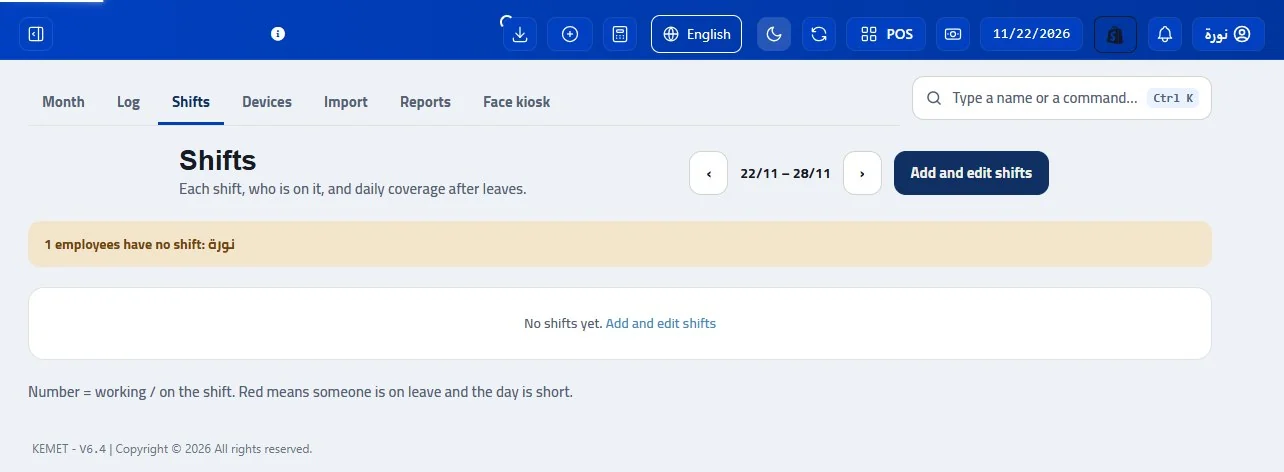
- Open Shifts under attendance.
- Review start, end, and assigned staff.
- Before changing a shift, verify its intended effective date.
- Check attendance for a trial workday after the update.
Screen path in KEMET
/hrm/shiftsField reference
- Shift
- Defines the expected start and end window.
- Assignment
- Verify the staff member or group that will use it.
Worked example
Review a 09:00–17:00 training shift for one staff member.
Open attendance for the same day and compare expected against recorded times.
Verify the result
- Check attendance for a trial workday after the update.
Troubleshooting
The row refers to a different employee or day.
Verify branch, employee identifier, and date before approving leave, correcting attendance, or recording a payment.
The screen or action is missing.
Ask the company administrator to check the add-on, menu visibility, role permissions, and branch scope.
Requires the applicable Essentials feature for the company and access for the signed-in user.