 KEMET
People
Find employees and review team records within your authorized scope.
Steps
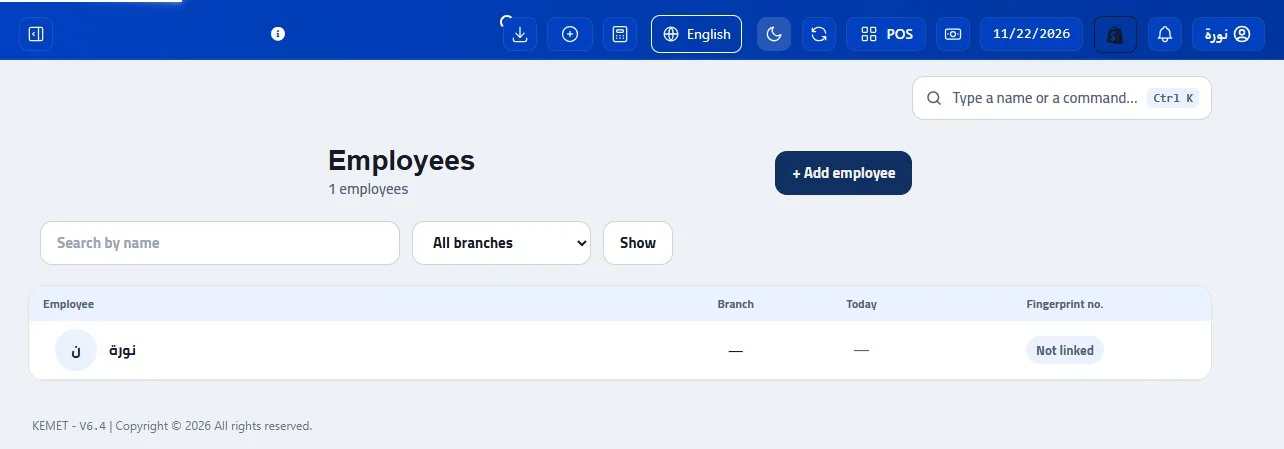
- Choose the branch where filters are provided.
- Search by employee name and verify the profile.
- Open the record and check the department, role, or attendance shown.
- Match every correction to the intended employee before saving.
Screen path in KEMET
/hrm/peopleField reference
- Employee
- Verify the name and account identifier in the correct company.
- Work details
- Check branch, role, and the accessible person records.
Worked example
Two training staff have similar names, so use their account identity before opening attendance.
Confirm the profile and its records refer to the intended employee.
Verify the result
- Match every correction to the intended employee before saving.
Troubleshooting
The row refers to a different employee or day.
Verify branch, employee identifier, and date before approving leave, correcting attendance, or recording a payment.
The screen or action is missing.
Ask the company administrator to check the add-on, menu visibility, role permissions, and branch scope.
Requires the applicable Essentials feature for the company and access for the signed-in user.