 KEMET
My page
Review personal HR details and available requests from your employee page.
Steps
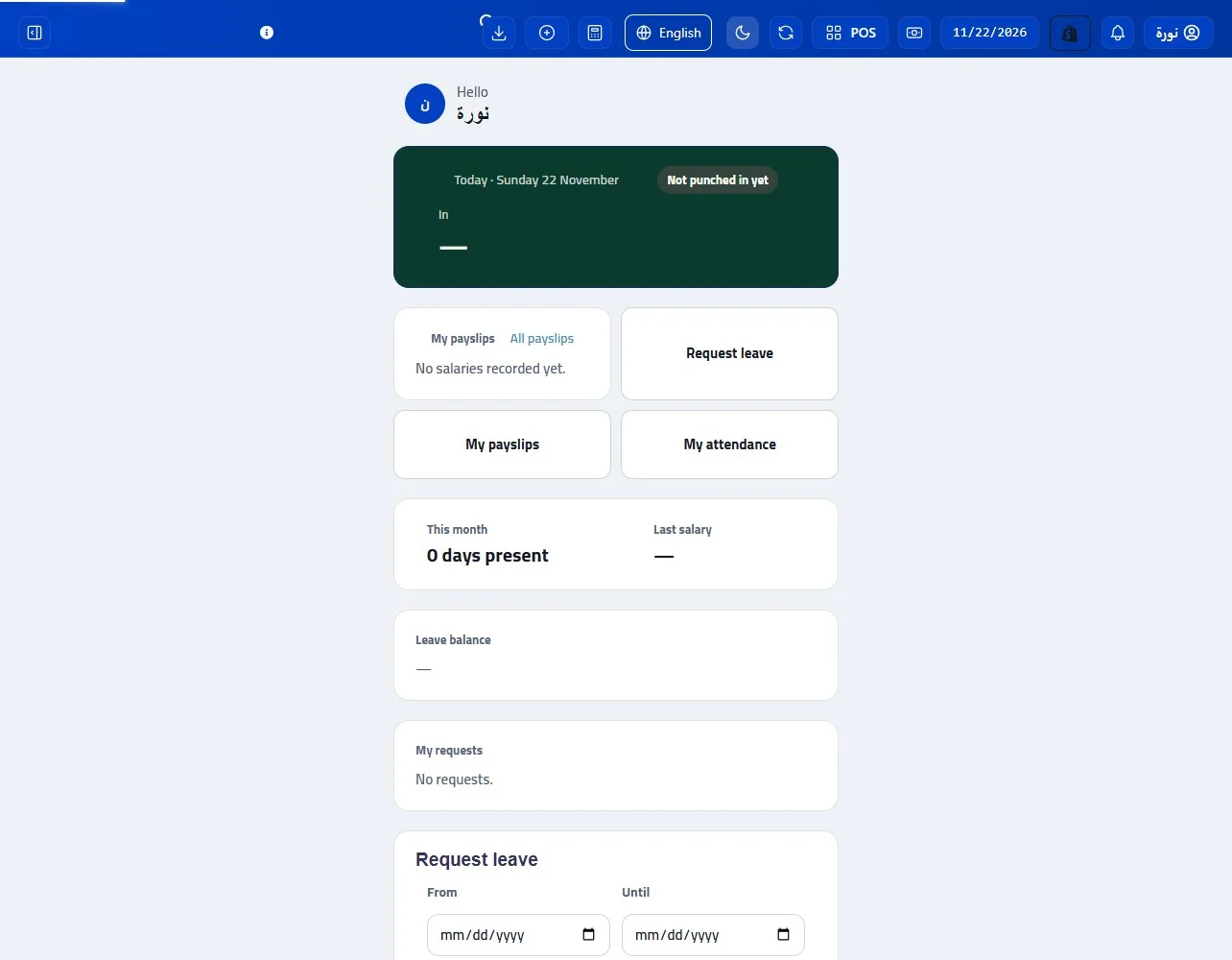
- Open My page from HR.
- Review your attendance or requests as available.
- For leave, select type and dates and enter the required explanation.
- After submitting, check the request status on your page.
Screen path in KEMET
/hrm/meField reference
- Period
- Review the intended dates instead of comparing different months.
- My request
- Track its date and status in your own history.
Worked example
A training employee prepares a one-day leave request and checks their page after submission.
Verify one request appears with the expected date and decision status.
From ChatGPT or Claude
Prepare my leave request with the dates and type I specify. Show the duration before submitting.
Verify the result
- After submitting, check the request status on your page.
Troubleshooting
The row refers to a different employee or day.
Verify branch, employee identifier, and date before approving leave, correcting attendance, or recording a payment.
The screen or action is missing.
Ask the company administrator to check the add-on, menu visibility, role permissions, and branch scope.
Requires the applicable Essentials feature for the company and access for the signed-in user.