 KEMET
Users
Review staff accounts, their status, and assigned roles.
Steps
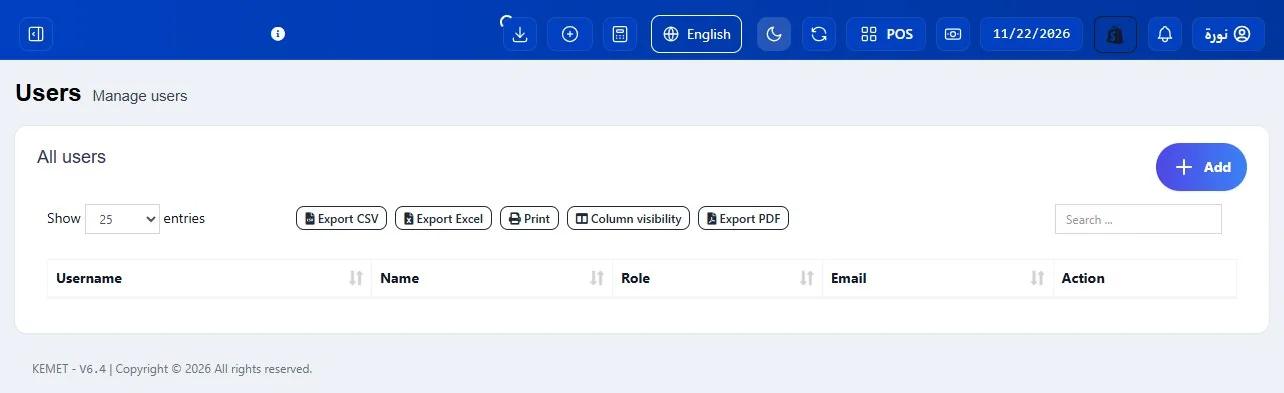
- Find the employee in the Users table.
- Check their status and role.
- Open Edit if permitted and check branches and role before saving.
- Use the company's secure channel to hand over access.
Screen path in KEMET
/usersField reference
- Username
- Choose a unique identity for the intended employee.
- Role and branches
- Check screen permissions and location access.
Worked example
Create a Salmiya training account using the native access page.
Confirm it can use the permitted screen and another branch is refused.
From ChatGPT or Claude
Help me with Users. Ask which branch, reference, or dates you need, and show the relevant data before any changes.
- Ask for a private setup link and identify the employee or integration.
- Open the link with the same KEMET account and finish on the company page.
- Verify the outcome in KEMET. Enter any password or integration secret on its dedicated KEMET page.
Related connector tools
- User details
users_show_user - Activate or deactivate a user
users_update_user_status - Change a user role
users_update_user_role - Change a user's branches
users_update_user_locations - Change user details
users_update_user_basic_info
Verify the result
- Use the company's secure channel to hand over access.
Troubleshooting
The result does not match the intended record.
Check the original reference, name, and filters before repeating the operation.
The screen or action is missing.
Ask the company administrator to check the add-on, menu visibility, role permissions, and branch scope.
Screen access depends on company settings, the role, and its allowed branches.