 KEMET
Order fulfillment
Track fulfillment from preparation to delivery by branch.
Steps
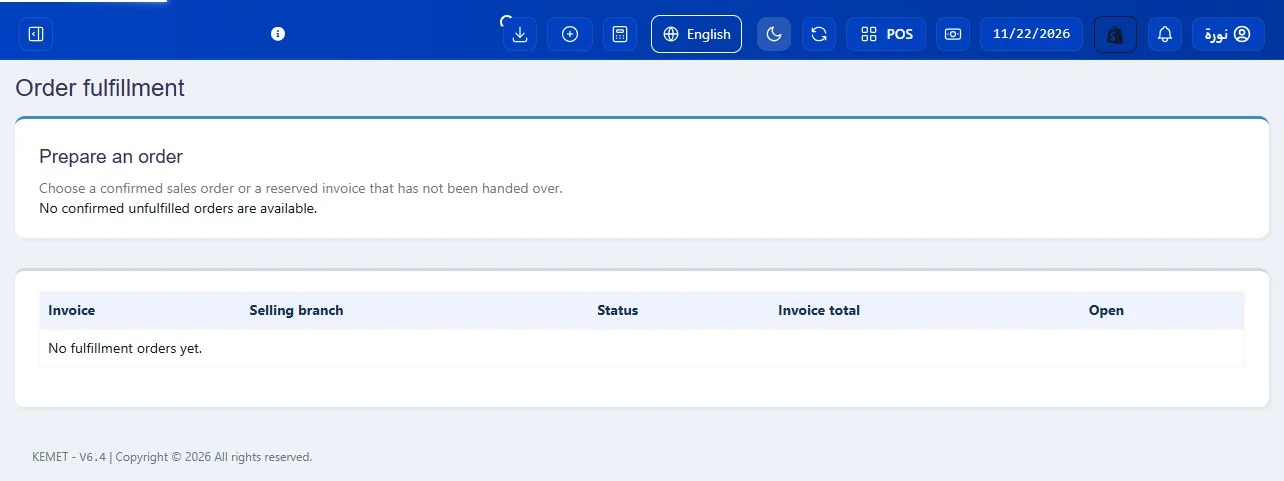
- Select the branch and status to review.
- Open the order and verify the customer and items.
- Use the action for the current stage after completing the physical work.
- Return to the list and check the new stage before taking another action.
Screen path in KEMET
/retail/fulfillmentField reference
- Order or transaction
- Use the originating reference to find the fulfillment record and its lines.
- Dispatch, receive and deliver
- Choose the action that matches the step that actually happened and is available in the current state.
- Collection and cancellation
- Review the order’s payment and item eligibility before recording an authorized financial or cancellation action.
Worked example
Track a test order from dispatch at Downtown to receipt at Marina, then verify the correct items before registering handover.
The record shows the changes in sequence against the same fulfillment reference and branches.
From ChatGPT or Claude
Preview cancellation of two reserved units on an unpaid fulfillment order. Include the order number, item, and reason.
- Compare the reserved quantity shown in the preview with the requested quantity and check that the refund amount is zero.
- After confirmation, review the cancellation credit and released reservation. The original order remains in the record.
Verify the result
- Open the order history after each action to confirm the new stage and branch.
- Check the relevant stock or payment movement when the action affects it.
Troubleshooting
The preparation or delivery action is unavailable.
Check order stage, branch, and role. Review the last recorded action before retrying.
The screen or action is missing.
Ask the company administrator to check the add-on, menu visibility, role permissions, and branch scope.
Screen access depends on company settings, the role, and its allowed branches.
Training in the KEMET Academy after signing in /academy/native/shopify_orders