 KEMET
Pre-orders
Review the order item, branch, and amount due before completion.
Steps
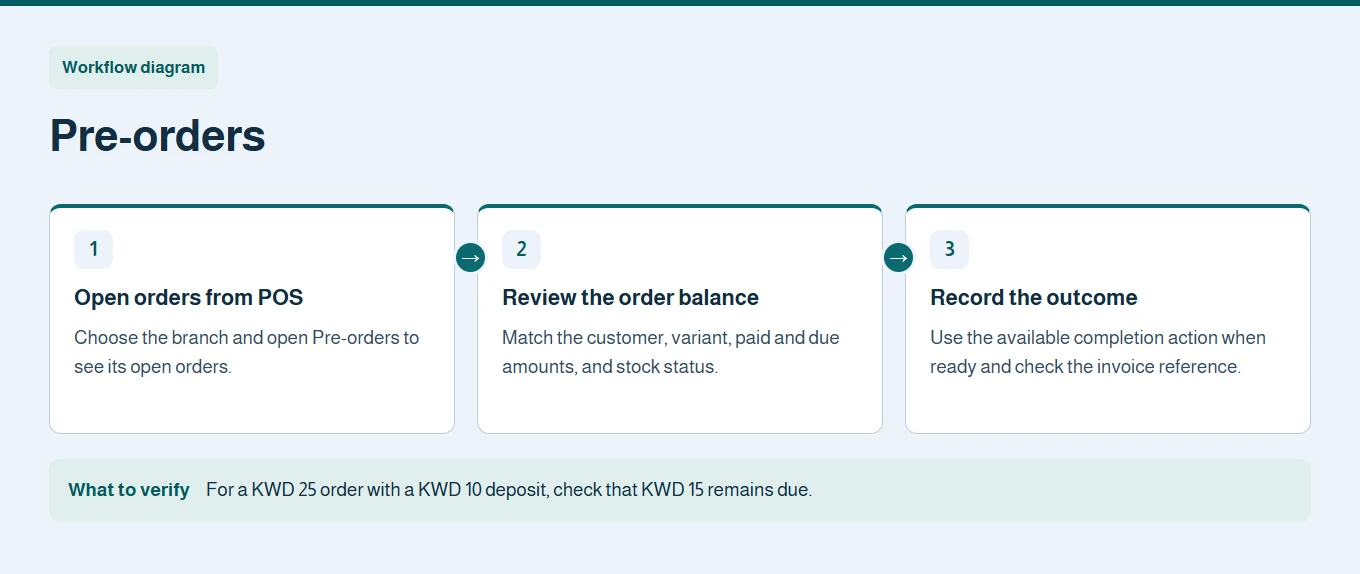
- Find the pre-order by reference or customer.
- Check variants, branch, amount paid, and outstanding balance.
- Verify preparation status before completing the order.
- When canceling, use the allowed action for this state and verify the retained history.
Screen path in KEMET
/pos-pre-ordersField reference
- Preorder reference
- Find the held preorder that belongs to the precise customer and branch.
- Items and remaining balance
- Review the selected products and the completion quote before confirming payment.
- Completion and receipt
- Use the completion action when the order can be finalized and keep its resulting sale or receipt reference.
Worked example
Open PO-041 for a 100 order with a 30 deposit. Verify that the completion screen shows 70 due before finalizing the test order.
The resulting sale reflects the prior deposit and the newly collected amount once each.
From ChatGPT or Claude
Help me with Pre-orders. Ask which branch, reference, or dates you need, and show the relevant data before any changes.
- Check the pre-order by reference, branch, and amount paid.
- The cancellation tool covers eligible unpaid newer pre-orders. Use the native screen for legacy or paid records.
- Review before confirming and verify the retained record and its status after saving.
Verify the result
- Check the original preorder, completion quote and final receipt against one another.
- After a retry or connection interruption, look up the reference before attempting completion again.
Troubleshooting
The preparation or delivery action is unavailable.
Check order stage, branch, and role. Review the last recorded action before retrying.
The screen or action is missing.
Ask the company administrator to check the add-on, menu visibility, role permissions, and branch scope.
Screen access depends on company settings, the role, and its allowed branches.
Training in the KEMET Academy after signing in /academy/native/pre_orders