 KEMET
Store Inventory
Track stocktakes and enter counts against the correct branch and option before approving discrepancies.
Steps
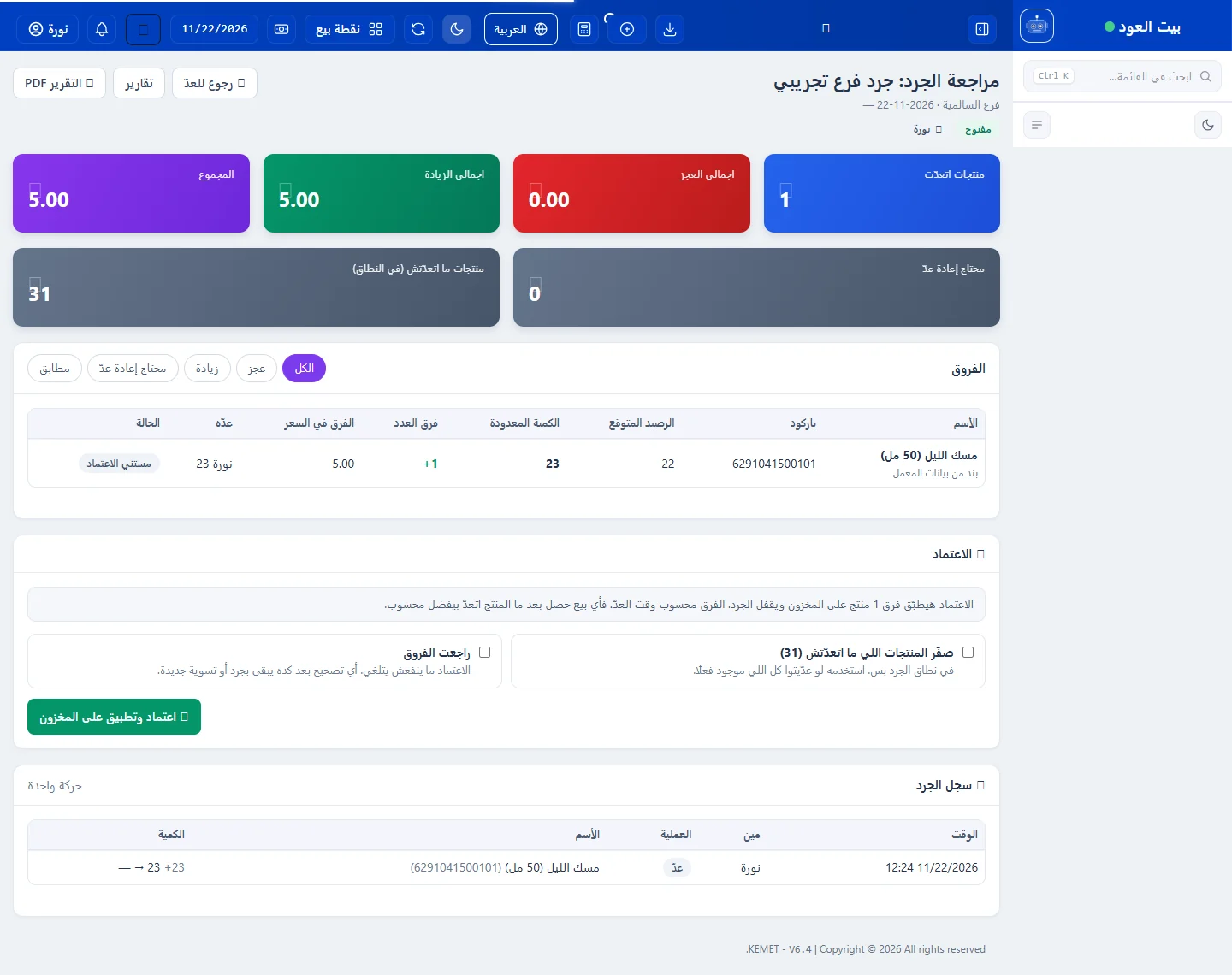
- Select branch and period in the stocktake list.
- Open the intended stocktake, or start a scheduled session when permitted.
- Enter the measured count per variant or scan the intended barcode.
- Review variances against recorded stock before approval.
- After approval, verify the resulting inventory history and stocktake report.
Screen path in KEMET
/invetorymangament/showInventoryListField reference
- Session and status
- Use the list to find the count and see whether it needs counting, review or follow-up.
- Recurring schedule
- Defines a branch, frequency, first due date and count scope for recurring stocktakes.
- Count scope
- Entire branch stock or the categories or brands selected for the schedule.
Worked example
Find the Downtown scarves count, open its review when available and compare the counted quantity of 18 to the recorded quantity of 20.
You can document a difference of two units for the reviewer and identify the session’s current state.
From ChatGPT or Claude
Help me with Store Inventory. Ask which branch, reference, or dates you need, and show the relevant data before any changes.
- Identify an open review stocktake, its branch, each variation, and its physical count.
- Review and confirm the count recording. Recording the count does not post stock adjustments.
- An authorized reviewer can preview approval after the review and confirm each variance.
Verify the result
- Check the session scope and status before approving or scheduling follow-up.
- For a schedule, confirm the next due date and the intended branch in the list.
Troubleshooting
The difference is for a different branch or option.
Match the branch, variation, and count date to stock history before making an adjustment.
The screen or action is missing.
Ask the company administrator to check the add-on, menu visibility, role permissions, and branch scope.
Requires the applicable InvetoryMangament feature for the company and access for the signed-in user.