 KEMET
List Expenses
Review branch expenses, receipts, and related payments.
Steps
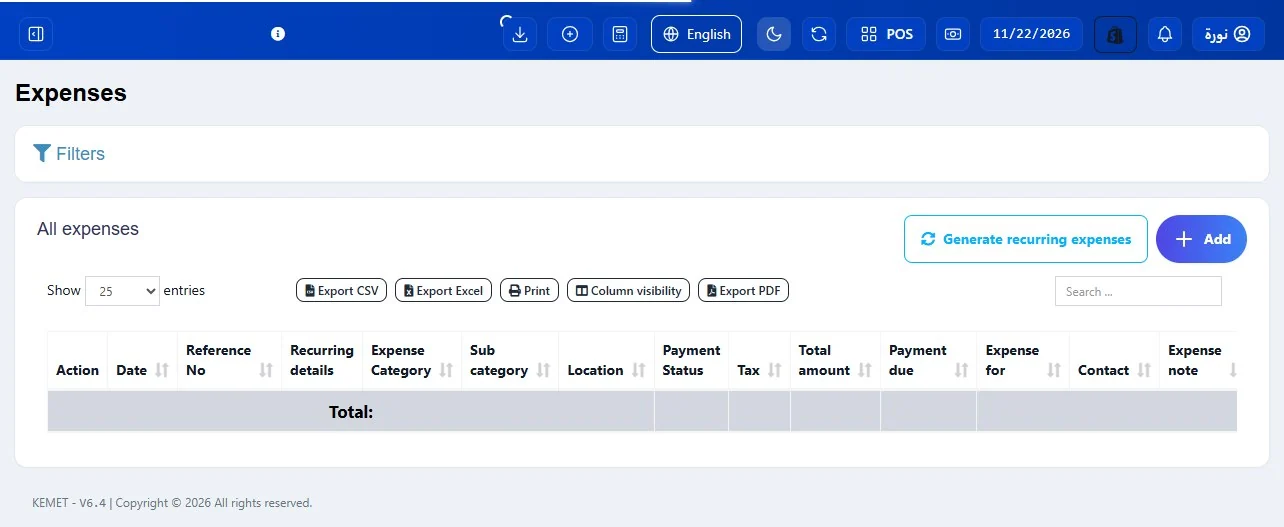
- Set the period, branch, and category.
- Open the expense and match its reference to the receipt.
- Check amount, payments, and any outstanding balance.
- Check the report before re-entering a receipt you may already have recorded.
Screen path in KEMET
/expensesField reference
- Location and dates
- Narrow the list to the outlet and period covered by your documents.
- Category
- Choose the relevant class of expenses to review similar charges together.
- Payment status
- Shows which expenses need payment review. Refer to the details for the recorded payment lines.
Worked example
Find the Downtown outlet’s 45 delivery expense by filtering the week and opening the record matching the delivery receipt.
The selected expense matches the category, date, amount and actual payment status.
From ChatGPT or Claude
Help me with List Expenses. Ask which branch, reference, or dates you need, and show the relevant data before any changes.
Related connector tools
- Expense setup
expense_expense_context - Change an expense
expense_edit_expense - Change how an expense was paid
expense_update_expense_payment - Expense print link
expense_print_expense
Verify the result
- Open payment details and compare the recorded reference with the receipt.
- Confirm the chosen branch and dates before interpreting the total.
Troubleshooting
The result does not match the intended record.
Check the original reference, name, and filters before repeating the operation.
The screen or action is missing.
Ask the company administrator to check the add-on, menu visibility, role permissions, and branch scope.
Screen access depends on company settings, the role, and its allowed branches.
Training in the KEMET Academy after signing in /academy/native/expenses