 KEMET
Add Stock Transfer
Move a specific quantity between branches without creating a sale or purchase.
Steps
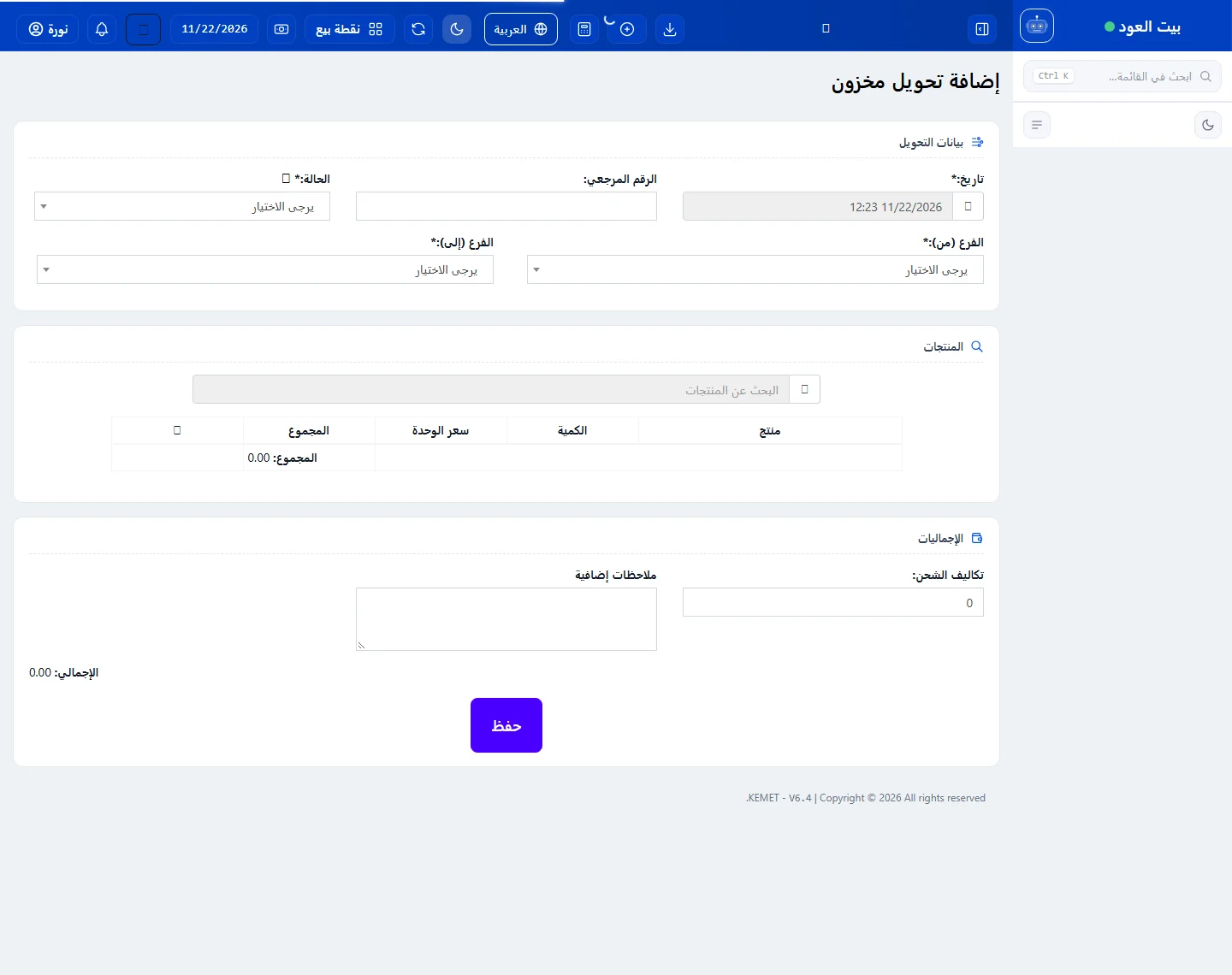
- Select source and destination branches.
- Find each product and choose its variation.
- Enter quantities and check availability at the source.
- Set the applicable status for the physical movement.
- After saving, give the reference to the receiving branch.
Screen path in KEMET
/stock-transfers/createField reference
- Location from and to
- Select two distinct branches and double-check the direction before entering products.
- Status
- Use Pending or In transit until permitted to mark it Completed. Completion updates stock in both locations.
- Product, quantity and reference
- Use each exact variation and the units being moved. Keep an internal reference to reconcile the transfer.
Worked example
Transfer three black medium scarves from Downtown to Marina. Start with the status matching the actual shipment, then complete when confirmed.
On completion, Downtown decreases by three and Marina increases by three for that variation.
From ChatGPT or Claude
Prepare a transfer of three units of this variation from Salmiya to Avenues. Show stock and the preview before saving.
Verify the result
- Verify both branches and the product code before saving.
- Confirm the transfer status and both stock changes by reference after completion.
Troubleshooting
The result does not match the intended record.
Check the original reference, name, and filters before repeating the operation.
The screen or action is missing.
Ask the company administrator to check the add-on, menu visibility, role permissions, and branch scope.
Screen access depends on company settings, the role, and its allowed branches.