 KEMET
GST Purchase Compliance
Open GST Purchase Compliance from Advanced Reports and review its results.
Steps
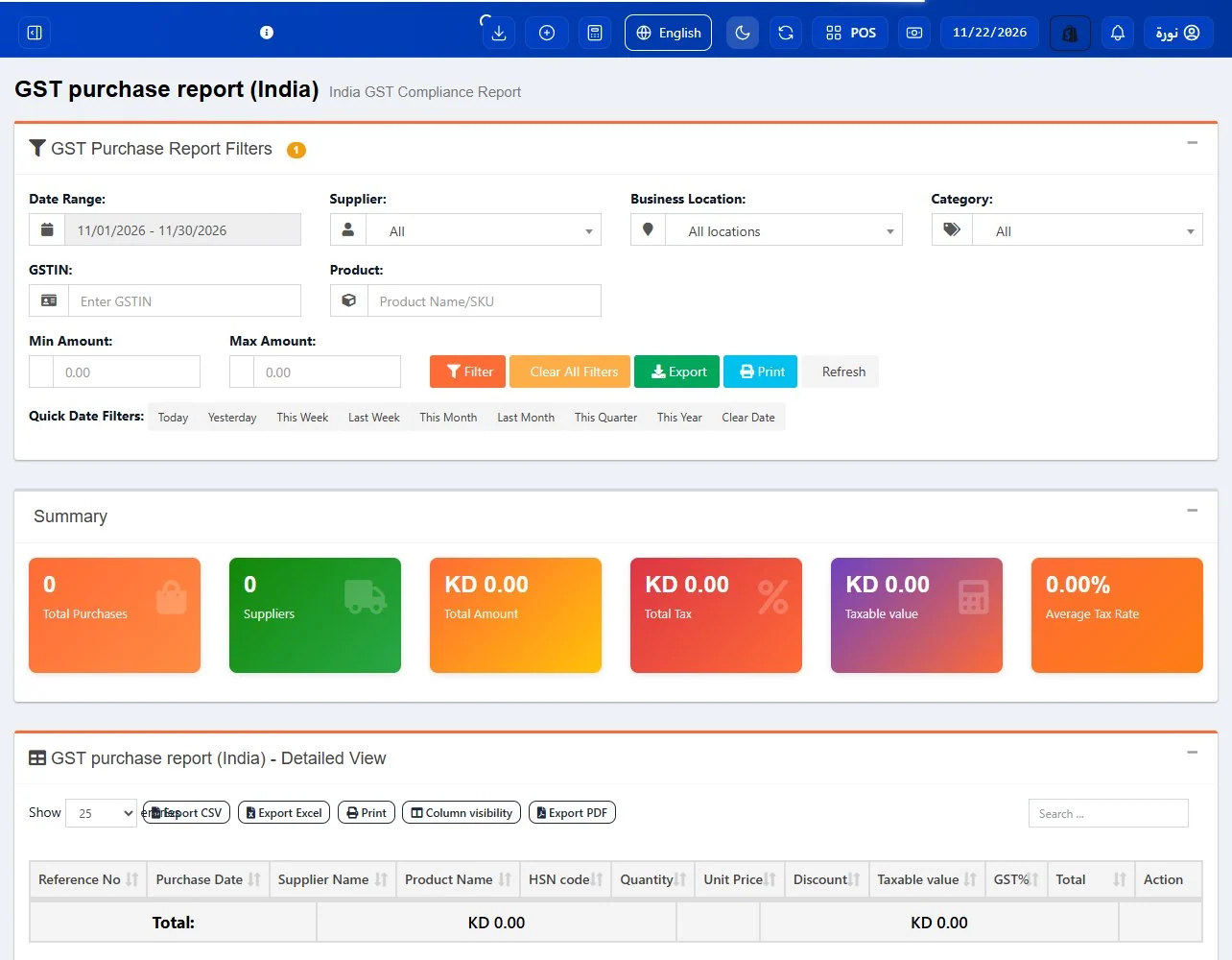
- Open GST Purchase Compliance from the reports available to your role.
- Review the relevant controls shown on the open tab, such as Date range, Branch, Category, Product, Supplier.
- Review the purchase tax report for an installation using the GST tax treatment.
- Check the matching detail before using the total or comparing the result elsewhere.
Screen path in KEMET
/advanced-reports/gst-purchase-reportField reference
- Date range
- Set the start and end and retain the same scope for comparisons.
- Branch
- Narrow the result to the intended branch, or choose permitted branches where offered.
- Category
- Keep the intended category selection consistent across comparisons.
- Product
- Find the intended item and check its name or code before matching the row.
- Supplier
- Limit the report to the supplier whose records you are reconciling.
- Result to verify
- Review the purchase tax report for an installation using the GST tax treatment.
Worked example
Choose a short period, branch and demo supplier. Match one taxable purchase and its tax values to its document and the configured tax treatment.
After the review, you should be able to trace the row or value to its source under the same scope.
Verify the result
- Confirm the dates, branch selection and same metric before comparing results.
Troubleshooting
The result is empty or outside the intended scope.
Check the record date and scope. Clear one active filter while keeping the intended company or branch.
The number differs from another screen.
Confirm the dates, branch selection and same metric before comparing results.
The result does not match the intended record.
Check the original reference, name, and filters before repeating the operation.
The screen or action is missing.
Ask the company administrator to check the add-on, menu visibility, role permissions, and branch scope.
Requires Advanced Reports and the role access applicable to this report.