 KEMET
Product Sales Report
Quantities and amounts of each product's sales in detail
Steps
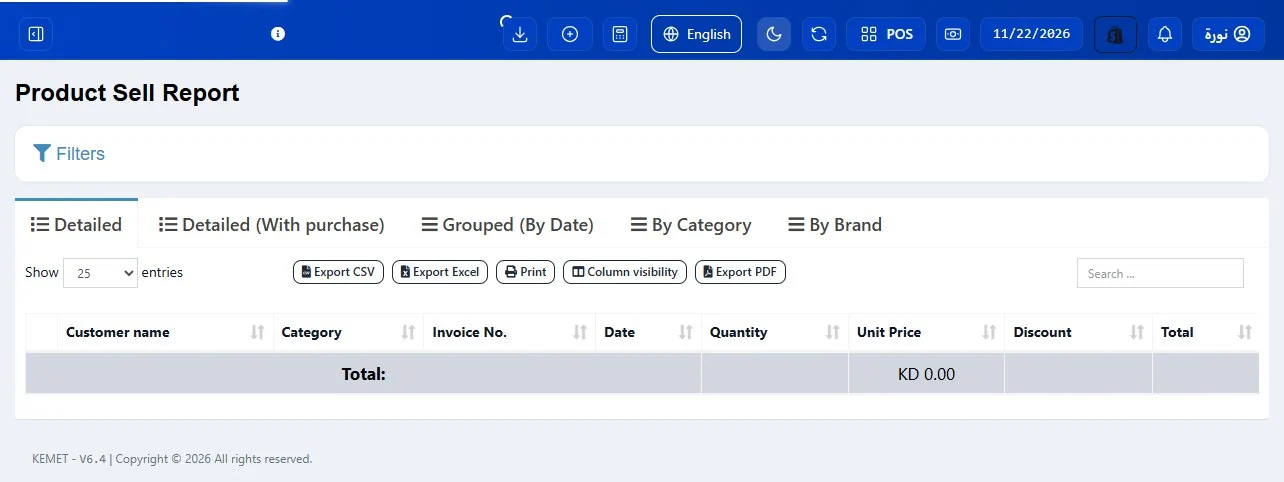
- Open Product Sales Report from the reports available to your role.
- Review the relevant controls shown on the open tab, such as Date range, Branch, Customer group or grouping, Category, Brand, Variation.
- Reconcile one product or variation's sales lines.
- Check the matching detail before using the total or comparing the result elsewhere.
Screen path in KEMET
/reports/product-sell-reportField reference
- Date range
- Set the start and end and retain the same scope for comparisons.
- Branch
- Narrow the result to the intended branch, or choose permitted branches where offered.
- Customer group or grouping
- Choose the group or grouping before comparing rows.
- Category
- Keep the intended category selection consistent across comparisons.
- Brand
- Limit to the intended brand where available.
- Variation
- Use the exact size or color before matching a line.
- Result to verify
- Reconcile one product or variation's sales lines.
Worked example
Select Salmiya, one product or variation, and one trading day. Match a report row and quantity to a known sales invoice, checking the time limits as well.
After the review, you should be able to trace the row or value to its source under the same scope.
From ChatGPT or Claude
Show Product Sales Report from my connected KEMET company. Ask me for the scope if needed. Compare with a preceding window of the same length and filters when comparison is requested and data is available. If I request table only, return the table.
- Review the dates and scope, and keep the same scope for comparisons.
- Tie figures to their sources and identify missing or unavailable report parts before drawing conclusions.
Verify the result
- Confirm the dates, branch selection and same metric before comparing results.
Troubleshooting
The result is empty or outside the intended scope.
Check the record date and scope. Clear one active filter while keeping the intended company or branch.
The number differs from another screen.
Confirm the dates, branch selection and same metric before comparing results.
Results are empty or differ from another report.
Match periods, branches and other filters, and check which records each report counts.
The report card is missing.
Check the staff role, add-on, and any required company setting.
Screen access depends on company settings, the role, and its allowed branches.