 KEMET
Users Report Center · Report Center
Find the report cards your account may use in this section.
Steps
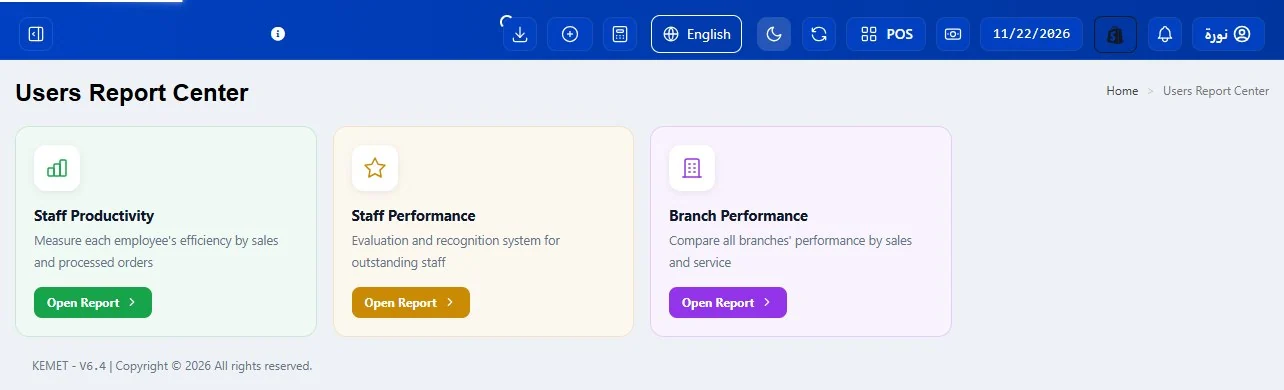
- Open the Report Center and select Users.
- Choose the report that matches the staff or representative question.
- Open the available card and inspect the name and controls on the destination screen.
Screen path in KEMET
/report-center/usersField reference
- Report cards
- Each available card opens a separate report under your permissions.
- Review goal
- Choose the report that matches the staff or representative question.
Worked example
For a known sales representative's results, open the available staff-related report card. Match the person and period before using any count.
Select the report for the question and confirm the title of the destination screen.
Verify the result
- If a card is unavailable, ask the company administrator to check the report permission for your role.
Troubleshooting
The result is empty or outside the intended scope.
Check report access, module activation and available demo records.
The number differs from another screen.
If a card is unavailable, ask the company administrator to check the report permission for your role.
The result does not match the intended record.
Check the original reference, name, and filters before repeating the operation.
The screen or action is missing.
Ask the company administrator to check the add-on, menu visibility, role permissions, and branch scope.
Each card follows its own role, add-on and company setting.