 KEMET
Daybook
Daily entries in chronological order with transaction details
Steps
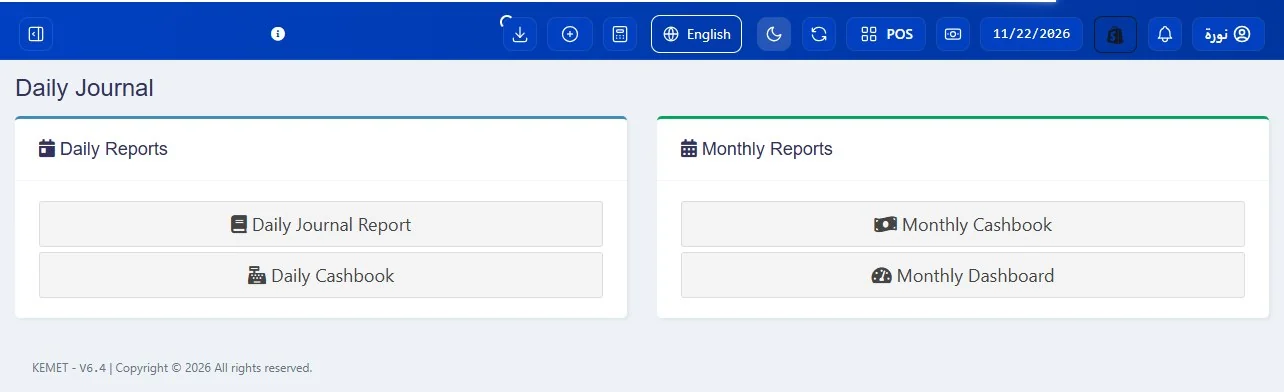
- Open Daybook from the reports available to your role.
- Start with the row or summary for the known demo transaction.
- Read transaction entries in their recorded order for an operational review.
- Check the matching detail before using the total or comparing the result elsewhere.
Screen path in KEMET
/advanced-reports/daybookField reference
- Row to trace
- Start with a row you can trace to its underlying document or activity.
- Result to verify
- Read transaction entries in their recorded order for an operational review.
Worked example
Find a known demo transaction by its date and reference in the daybook. Check the order and underlying transaction before drawing conclusions from neighboring entries.
After the review, you should be able to trace the row or value to its source under the same scope.
From ChatGPT or Claude
Show Daybook from my connected KEMET company. Ask me for the scope if needed. Compare with a preceding window of the same length and filters when comparison is requested and data is available. If I request table only, return the table.
- Review the dates and scope, and keep the same scope for comparisons.
- Tie figures to their sources and identify missing or unavailable report parts before drawing conclusions.
- If you need a specific section, request that part by name in the next report read.
Verify the result
- Match the reference, actor, and timestamp in the record detail.
Troubleshooting
The result is empty or outside the intended scope.
Check the record date and scope. Clear one active filter while keeping the intended company or branch.
The number differs from another screen.
Match the reference, actor, and timestamp in the record detail.
Results are empty or differ from another report.
Match periods, branches and other filters, and check which records each report counts.
The report card is missing.
Check the staff role, add-on, and any required company setting.
Requires the Advanced Reports add-on.