 KEMET
Home
Check a summary of your business after signing in.
Steps
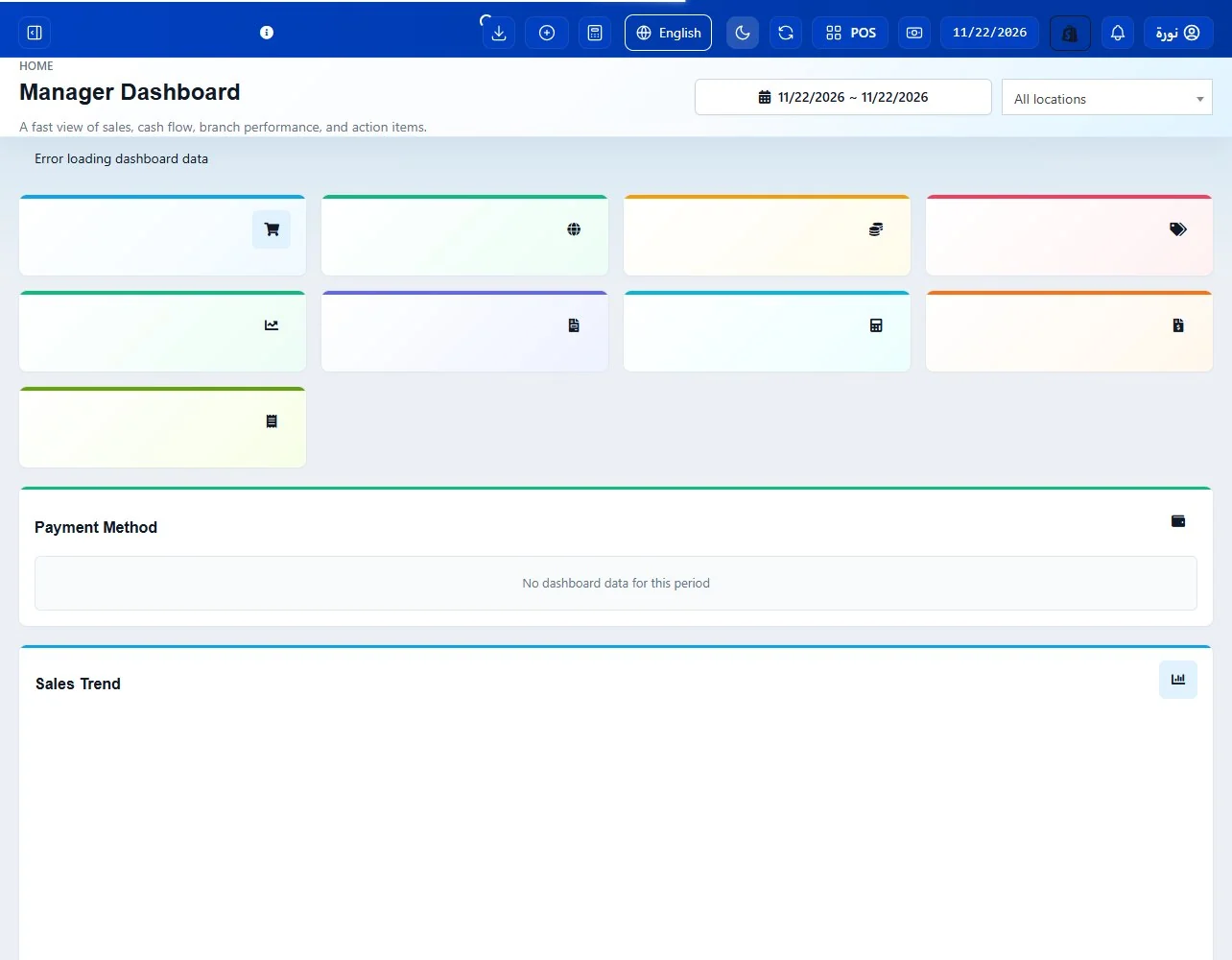
- Set the period or branch when the dashboard offers those controls.
- Find the metric you want to review, such as sales.
- Open the corresponding detailed report before acting on a summary figure.
Screen path in KEMET
/homeField reference
- Period
- Controls the dates included in the summary.
- Branch
- Use the same branch scope in the underlying report when reconciling.
Worked example
Review a day in Salmiya and open the comparable sales report.
Compare the number using matching dates, branch, and document status.
Verify the result
- Open the corresponding detailed report before acting on a summary figure.
Troubleshooting
The result does not match the intended record.
Check the original reference, name, and filters before repeating the operation.
The screen or action is missing.
Ask the company administrator to check the add-on, menu visibility, role permissions, and branch scope.
Screen access depends on company settings, the role, and its allowed branches.